WhatsApp|10 minutes Read
How to Restore WhatsApp Backups in 2026 Without Losing Your Chats
Ethnickoti

There’s a very particular kind of panic that happens when you open WhatsApp and your chats are suddenly gone.
Maybe you switched phones. Maybe the app crashed during setup. Maybe you reset your device too quickly and assumed everything would just come back automatically because, well, it usually does.
Until it doesn’t.
The good news is that WhatsApp backup restoration is actually pretty reliable in 2026 when the backup exists, the correct account is connected, and a few tiny details line up properly. The bad news? Most restore failures happen because of one overlooked thing. Wrong Google account. Different phone number. Encrypted backup password nobody remembers anymore.
That’s where people get stuck for hours.
This guide walks through what genuinely works on Android and iPhone, how to restore local backups, why restores freeze midway, and what to do when WhatsApp claims your backup doesn’t exist even though you know it does.
Sounds obvious. Still worth checking before reinstalling anything.
On Android:
WhatsApp → Settings → Chats → Chat Backup
On iPhone:
WhatsApp → Settings → Chats → Chat Backup
You should see:
The date of the latest backup
The cloud account being used
Approximate backup size
That last part matters more than people think. A 40MB backup usually means media isn’t included. A 12GB backup tells a very different story.
And yes, video backups can get absurdly large now.
WhatsApp quietly handles backups behind the scenes, which is convenient right up until you need to troubleshoot them.
Android devices usually store backups in two places:
Google Drive
Local device storage
iPhones rely mainly on:
iCloud
The important detail people miss is this: WhatsApp backups are linked tightly to your phone number and cloud account together.
Change one of them carelessly and restores start failing in weird ways.
Android restores are usually straightforward when everything matches properly.
The same phone number used during backup
The same Google account connected to the backup
A stable internet connection
Enough free storage space
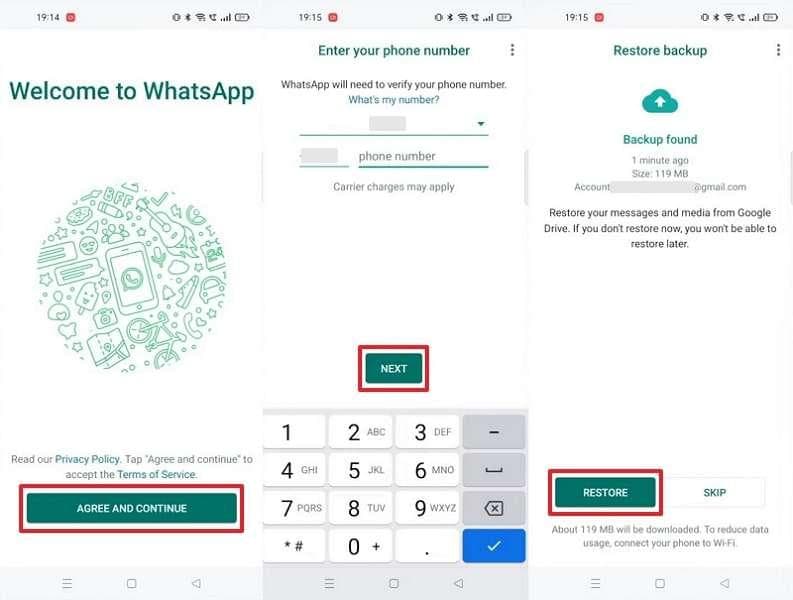
Install WhatsApp from the Play Store
Verify your phone number
WhatsApp should automatically detect the backup
Tap Restore
Wait patiently while chats download
The word “patiently” matters here more than people expect.
Large backups can look frozen when they’re actually still processing in the background. Especially media-heavy accounts with years of videos and group chats. Sometimes chats appear first while photos continue restoring quietly for hours afterward.
A lot of users interrupt the restore too early because they assume something broke.
iPhone restores feel cleaner than Android in some ways, though iCloud introduces its own quirks.
Same Apple ID
Same phone number
iCloud Drive enabled
Enough free iPhone storage
Delete and reinstall WhatsApp
Verify your number
Tap Restore Chat History
One thing iPhone users run into surprisingly often is low iCloud storage. People assume backups completed successfully because the phone said “backing up,” but partial uploads happen more than you’d think.
Especially with years of videos.
This is one of those hidden features people only discover after a crisis.
Android devices quietly create local WhatsApp backup files inside device storage. They’re incredibly useful when Google Drive restores fail or internet access becomes unreliable.
You’ll usually find them here:
Internal Storage → Android → media → com.whatsapp → WhatsApp → Databases
Backup files normally look something like:
msgstore.db.crypt14
If multiple dated backups exist, you can rename the one you want restored to:
msgstore.db.crypt14
Then reinstall WhatsApp and verify your number. During setup, WhatsApp should detect the local backup automatically.
This method has rescued a surprising number of broken migrations over the years.
Few error messages are more irritating because the backup often does exist somewhere.
Usually the issue comes down to one of these:
Wrong Google or Apple account
Different phone number
Corrupted backup
Weak internet connection
Outdated WhatsApp version
The account mismatch issue catches people constantly. Especially Android users with multiple Google accounts logged into one device.
WhatsApp only searches the account connected to the original backup. If you changed accounts during setup, the restore screen may look completely empty.
Frustratingly simple problem. Very common.
Phone upgrades used to make WhatsApp migrations miserable. Things have improved quite a bit now.
Google Drive restore is still the easiest method. As long as the same number and account are used, setup usually works smoothly.
iCloud handles most transfers automatically now, though large media collections still take time to fully sync.
This used to be messy enough that many people simply gave up.
WhatsApp now supports official cross-platform migration during device setup. It’s dramatically better than the unofficial transfer apps that dominated a few years ago.
Still, transfers can take a while. Especially if years of media are involved. Some patience helps.
This is probably the most stressful part of the whole process because it creates uncertainty. You don’t know if the restore is working slowly or failing silently.
A few things genuinely help:
Use stable Wi-Fi instead of mobile data
Keep battery above 50%
Disable battery saver temporarily
Free up extra storage space
Restart the device before trying again
And honestly? Sometimes the app just needs more time than expected.
Huge backups can sit at 99% for ages while media indexing continues behind the scenes.
If deleted messages existed inside your latest backup, recovery is usually possible.
The process is simple:
Uninstall WhatsApp
Reinstall it
Restore the available backup
The difficult part is timing.
If WhatsApp created a newer backup after the deletion happened, the older messages may already be overwritten. Daily automatic backups are helpful until they accidentally preserve the wrong state.
WhatsApp’s end-to-end encrypted backups are excellent for privacy. They’re also unforgiving.
If encrypted backup protection is enabled, you’ll need either:
Your backup password
Your 64-digit recovery key
Without them, the backup cannot be restored.
Not by WhatsApp. Not by support agents. Not by recovery tools.
People underestimate this constantly until they upgrade phones years later and realize they never wrote the password down.
Most WhatsApp disasters are preventable with small habits that take maybe two minutes to set up.
Especially if WhatsApp is tied to work, family records, or important documents.
Videos dramatically increase backup size. Sometimes excluding them makes restores much faster and more reliable.
A nearly full phone causes more backup corruption issues than most people realize.
Future-you will appreciate it enormously.
For most people, WhatsApp backup restoration works quietly in the background and never becomes something they think about. Until a phone breaks, a migration fails, or years of conversations suddenly seem at risk.
The biggest thing to remember is that successful restores depend less on luck and more on consistency same number, same cloud account, enough storage, stable internet, and a valid backup that actually finished uploading properly.
And if you’re reading this before disaster strikes, honestly, that’s the best timing possible.
Go check your backup settings now. Most people only do after something goes wrong.
Ethnic Koti Editorial Team. (2026). "How to Restore WhatsApp Backups in 2026 Without Losing Your Chats". Ethnickoti Blog. Retrieved from https://ethnickoti.com/blog/whatsapp-backup-restore-guide-2026
Join the conversation. Be respectful and helpful.