Snapchat|10 minutes Read
Snapchat Privacy Settings Most People Ignore — But Probably Shouldn’t
Ethnickoti

Most people download Snapchat, set up a Bitmoji, add a few friends, and never really touch the privacy settings again.
Which is understandable. The app is designed to feel casual. Fast photos. Quick chats. Stories that disappear. It gives off this strange illusion that everything inside it is temporary and harmless.
But once you actually poke around the settings menu, you realize Snapchat collects and shares more than many users assume location visibility, contact permissions, ad interests, activity signals, friend suggestions. Tiny things individually. A bigger picture when combined.
Some people are perfectly fine with that. Others are less thrilled after random strangers start appearing in Quick Add or when friends casually mention, “I saw you were at the mall earlier.”
That’s usually the moment users start caring about privacy settings.
The good news is Snapchat actually gives you a decent amount of control. The problem is most of it sits buried under menus people rarely open.
Before changing anything, you need to know where Snapchat hides the important stuff.
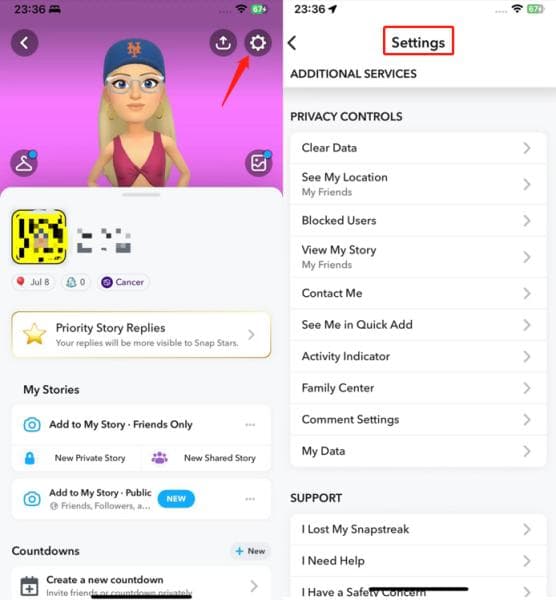
Open Snapchat
Tap your Bitmoji or profile icon in the top-left corner
Tap the small gear icon in the top-right
Scroll until you reach the Privacy Controls section
That section matters more than people think.
Honestly, if you’ve never looked through it before, you’ll probably find at least one setting currently more public than you intended.
This is the first thing I’d adjust on a new Snapchat account. Immediately.
The “Contact Me” setting controls who can:
Send you Snaps
Start chats
Call you through Snapchat
If it’s set to “Everyone,” you’re basically leaving the front door unlocked.
That doesn’t always create problems, but it absolutely increases random messages, spam accounts, and awkward friend requests from people you vaguely knew three years ago.
Most users are better off choosing:
My Friends
You’ll find it here:
Settings → Privacy Controls → Contact Me
Small change. Big difference in how noisy your account feels afterward.
A lot of people post Stories casually without checking who can actually view them.
Then one day somebody they barely know references a Story they assumed only close friends saw. Slightly unsettling experience.
Snapchat gives you three basic visibility options:
Everyone
Friends Only
Custom
For most people, Friends Only is the safest balance. You still share normally without opening your content to strangers.
Custom settings are underrated too. They let you quietly hide Stories from specific people without unfriending them.
Useful? Very.
Especially during family gatherings and relationship drama, if we’re being realistic.
To adjust it:
Settings → View My Story
Snap Map still surprises people.
Not because it exists most users know about it now but because they forget it quietly updates their location in the background whenever they open the app.
That means friends can sometimes see:
Your neighborhood
Where you work
Where you spend weekends
When you travel
For some people, that’s fine. For others, it starts feeling invasive once they realize how detailed the map can get.
Ghost Mode fixes that.
To enable it:
Open Snap Map
Tap the settings gear
Turn on Ghost Mode
Snapchat lets you choose whether Ghost Mode lasts:
3 hours
24 hours
Until turned off
Personally, “Until turned off” makes the most sense unless you genuinely enjoy location sharing.
And honestly? Most people don’t need dozens of casual acquaintances seeing where they are in real time.
Quick Add is Snapchat’s version of social matchmaking.
It recommends your account to mutual connections, nearby contacts, and sometimes people who only vaguely overlap with your social circles.
Some users love it because it helps rebuild old friend groups. Others find it deeply annoying.
If you’d rather not appear in strangers’ suggestions:
Settings → See Me in Quick Add → OFF
That one setting dramatically cuts down random adds.
Especially after your account starts getting older.
Here’s something many users miss: location sharing doesn’t have to be all-or-nothing.
You can keep Snap Map active while limiting visibility to specific people.
Snapchat includes options like:
My Friends Except…
Only These Friends…
That’s actually useful for close friend groups or families who coordinate plans often.
The important thing is making the choice intentionally instead of leaving the default settings untouched forever.
Social apps have become obsessed with showing who’s online, typing, active recently, or half-paying attention.
Snapchat is no exception.
You can’t fully disappear from every activity signal inside the app, but limiting who contacts you and reducing location visibility makes your account feel significantly less exposed.
Sometimes privacy is less about becoming invisible and more about reducing unnecessary access.
That distinction matters.
People connect apps to Snapchat and completely forget about them afterward.
Quiz apps. Editing tools. Random integrations from years ago.
Some of them still retain account permissions long after you stop using them.
You can review everything here:
Settings → Connected Apps
If you don’t recognize an app anymore, remove it.
Simple rule.
This is the one setting people ignore until their account gets hacked.
Then suddenly it becomes urgent.
Two-factor authentication adds a second verification step when someone tries logging into your account. Even if your password leaks somewhere, attackers still need the verification code.
You can enable it through:
Settings → Two-Factor Authentication
Snapchat supports:
SMS verification
Authentication apps
Authentication apps are generally safer.
Google Authenticator and Microsoft Authenticator are both solid choices.
And yes, it takes an extra few seconds during login. Worth it.
Snapchat Memories can quietly become a personal archive over time.
Old relationships. Private videos. Embarrassing photos. Random moments you forgot existed.
Not everything there should be casually accessible if somebody grabs your phone.
That’s where “My Eyes Only” comes in.
It password-protects selected Memories behind a separate passcode.
A little extra friction. Much better privacy.
You can’t fully remove ads from Snapchat, but you can reduce how personalized they feel.
Inside Ad Preferences, Snapchat lets users disable certain targeting categories tied to interests and activity.
To check it:
Settings → Ads → Ad Preferences
You can turn off:
Lifestyle categories
Audience-based ads
Activity-based personalization
It won’t suddenly make Snapchat anonymous. But it does reduce how aggressively the platform builds advertising profiles around your behavior.
If somebody only changes four things after reading this, honestly, these would be my picks:
Turn on Ghost Mode
Set Contact Me to My Friends
Disable Quick Add
Enable Two-Factor Authentication
Those four changes alone tighten up your account dramatically without making Snapchat annoying to use.
And honestly, privacy settings work best when they’re realistic. Most people aren’t trying to disappear from the internet entirely. They just want fewer strangers, less tracking, and more control over who sees what.
Fair request, really.
Ethnic Koti Editorial Team. (2026). "Snapchat Privacy Settings Most People Ignore — But Probably Shouldn’t". Ethnickoti Blog. Retrieved from https://ethnickoti.com/blog/snapchat-privacy-settings-guide
Join the conversation. Be respectful and helpful.