Snapchat|10 minutes Read
Snapchat Notifications Not Working? The Fixes That Actually Solve It on iPhone and Android
Ethnickoti

Few things break your phone experience faster than missing Snapchat notifications.
You open the app hours later and suddenly realize someone sent snaps, messages, streak reminders, or even missed calls that never appeared on your lock screen. Sometimes the notifications arrive late. Sometimes they show up only when you open Snapchat manually. And sometimes they disappear entirely for no obvious reason.
Annoying part? The problem usually isn’t Snapchat itself.
Modern smartphones aggressively manage background apps now. Battery optimization systems constantly interfere with notifications, especially on Android devices from Samsung, Xiaomi, Vivo, Oppo, and OnePlus. iPhones aren’t immune either. Focus modes, notification summaries, and background refresh settings quietly break alerts all the time.
The good news is that Snapchat notification issues are usually fixable within a few minutes once you know where the problem is coming from.
Usually.
Not all notification problems behave the same way, and identifying the pattern saves a lot of pointless troubleshooting.
No notifications at all usually points to disabled permissions or battery restrictions.
Delayed notifications often happen because the app is sleeping in the background.
No notification sound tends to be tied to Focus Mode, silent settings, or app-level sound permissions.
Notifications only arriving on Wi-Fi usually involves mobile data restrictions or data saver settings.
This matters because people often jump straight to reinstalling Snapchat when the real culprit is buried inside battery settings they haven’t opened in two years.
This sounds obvious. It still solves the problem surprisingly often.
Snapchat has separate notification controls inside the app itself, and they can accidentally get disabled during updates, account changes, or random taps people don’t remember making.
Open Snapchat
Tap your profile or Bitmoji icon
Open Settings
Scroll to Notifications
Then check everything carefully. Message alerts, Story notifications, calls, mentions, friend requests, streak reminders. Sometimes only one category is disabled while others still work normally.
And yes, Snapchat occasionally resets settings after major app updates. People think they’re imagining it. They’re usually not.
Even if Snapchat notifications are enabled everywhere else, your phone can still block them completely.
And honestly, both Android and iPhone settings have become confusing enough that plenty of users accidentally disable permissions without realizing it.
Go to:
Settings → Apps → Snapchat → Notifications
Make sure these are enabled:
Allow Notifications
Lock screen alerts
Pop-up notifications
Sound permissions
Go to:
Settings → Notifications → Snapchat
Then confirm:
Allow Notifications is enabled
Banners are active
Sounds are turned on
Badges are enabled if you want unread counts
One tiny toggle being off can make the app feel completely broken.
This is where most Android notification problems live.
Phone manufacturers became obsessed with battery life over the last few years, so many devices now aggressively shut down apps running in the background. Snapchat gets targeted constantly because it uses messaging, camera activity, syncing, and live services.
The phone thinks it’s saving power. Meanwhile your notifications arrive 47 minutes late.
Go to:
Settings → Battery → Battery Optimization
Find Snapchat and switch it to:
Not Optimized
Unrestricted
Allow Background Activity
The wording changes depending on your phone brand, but the goal stays the same: stop your phone from putting Snapchat to sleep.
Samsung and Xiaomi devices are especially aggressive with background app restrictions. Honestly, they cause more Snapchat notification complaints than almost anything else.
Samsung’s software tries very hard to optimize battery performance. A little too hard sometimes.
Even if Snapchat notifications are enabled everywhere else, Samsung devices can silently place the app into sleeping mode after periods of inactivity.
Open:
Settings → Battery and Device Care → Battery → Background Usage Limits
Then:
Remove Snapchat from Sleeping Apps
Remove it from Deep Sleeping Apps too
That single adjustment fixes delayed notifications for a huge number of Samsung users.
A lot of people forget Focus Mode even exists until notifications stop appearing.
Apple’s Focus filters and Android’s Do Not Disturb settings can silence Snapchat alerts without fully disabling them. Which creates confusing situations where notifications technically arrive but never make sound or appear visibly.
Go to:
Settings → Focus
Check whether:
Sleep Focus is active
Work Focus is filtering Snapchat
Notification summaries are delaying alerts
Open:
Settings → Sound → Do Not Disturb
Turn it off temporarily just to test notification behavior.
Sometimes the simplest explanation really is the correct one.
Corrupted cache files can absolutely interfere with notifications. Not constantly, but often enough that clearing cache is worth trying before more extreme fixes.
Go to:
Settings → Apps → Snapchat → Storage → Clear Cache
You can also clear cache directly inside Snapchat settings.
Then restart the app completely. Don’t just minimize it. Force close it first.
Little detail. Big difference sometimes.
People skip app updates for weeks and then act surprised when notifications behave strangely after an operating system update.
Notification systems are tightly tied to background services and push frameworks. Older Snapchat builds occasionally stop syncing properly after Android or iOS changes something under the hood.
So yes, updating the app genuinely matters here.
Open the App Store or Google Play Store and make sure Snapchat is fully updated before troubleshooting deeper issues.
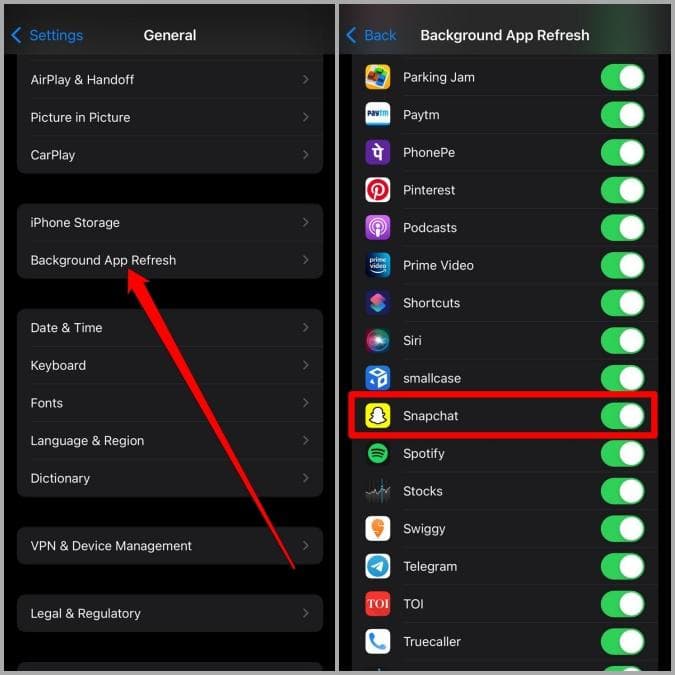
This setting gets overlooked constantly.
If Background App Refresh is disabled, Snapchat may struggle to fetch notifications properly while inactive.
Go to:
Settings → General → Background App Refresh
Then make sure Snapchat is enabled.
If it’s already on, try toggling it off and back on again. Weirdly enough, that occasionally fixes stuck notification behavior too.
It feels almost too simple, but refreshing your account session can restore broken push notification syncing.
Log out of Snapchat completely, restart your phone, then sign back in.
No technical magic here. It just forces the app to rebuild notification registration with Snapchat’s servers.
This should be the last step, not the first.
Deleting and reinstalling Snapchat fixes:
Corrupted app installs
Broken notification permissions
Sync problems
Background service issues
Before reinstalling, restart your phone after deleting the app. It sounds unnecessary, but it clears lingering background processes that sometimes survive deletion.
For most users, the winning combination looks like this:
Enable Snapchat notifications inside the app
Enable phone-level notification permissions
Disable battery optimization
Update Snapchat
Restart the phone afterward
That sequence fixes the majority of notification problems people run into.
Especially on Samsung phones. Honestly, Samsung’s background management system causes so many messaging issues across apps that entire Reddit threads exist purely to complain about it.
So if Snapchat notifications suddenly stopped working after a software update or battery-saving tweak, don’t panic immediately. Your phone is probably trying a little too hard to “optimize” things.
That usually means your phone is restricting Snapchat’s background activity. Battery optimization or sleeping app settings are the most common reasons, especially on Samsung and Xiaomi devices.
Major Android and iOS updates sometimes reset notification permissions, Focus settings, or battery restrictions. Updating Snapchat afterward and checking permissions usually fixes the issue.
No. Clearing cache removes temporary app files, not your account data. Your chats, friends, streaks, and saved memories remain connected to your Snapchat account.
Delayed notifications are commonly caused by aggressive battery-saving systems. Android manufacturers often pause Snapchat in the background to extend battery life, which delays push notifications.
Yes but only after trying permissions, battery settings, updates, and cache clearing first. Reinstalling works best when the app installation itself became corrupted or notification syncing broke completely.
Ethnic Koti Editorial Team. (2026). "Snapchat Notifications Not Working? The Fixes That Actually Solve It on iPhone and Android". Ethnickoti Blog. Retrieved from https://ethnickoti.com/blog/snapchat-notifications-not-working-fix-iphone-android
Join the conversation. Be respectful and helpful.