Messenger|9 minutes Read
How to Remove Community Chat in Messenger Without the Headache
Ethnickoti

Messenger communities sounded useful when Meta first pushed them out. A space for clubs, project groups, neighborhoods, gaming circles, extended families. It made sense on paper.
Then reality happened.
Some community chats turned into nonstop notification machines. Others quietly died but still sat there inside Messenger like abandoned group projects nobody wanted to touch. And sometimes you simply join one by accident because somebody added the entire friend list at 11:47 PM on a Wednesday.
If you’ve reached the point where you want a cleaner Messenger inbox, you’re not alone. A lot of people eventually start trimming these chats down. Less noise. Fewer random pings. Slightly more peace.
The tricky part is that Messenger handles community chats differently depending on your role. Admins get full control. Regular participants don’t. Which is why some people keep searching for a delete option that simply isn’t there.
Here’s how the whole thing actually works.
Messenger community chats are tied closely to Facebook Groups and Communities. Because of that setup, Meta splits permissions into two categories:
Admins can permanently delete community chats.
Participants can only hide chats or leave them.
That distinction matters more than people expect. Plenty of users think Messenger is glitching because they can’t find the delete button. Usually, the app is working exactly as intended. It’s just limiting what non-admin members can change.
A little annoying, honestly. But once you know your role, the steps become straightforward.
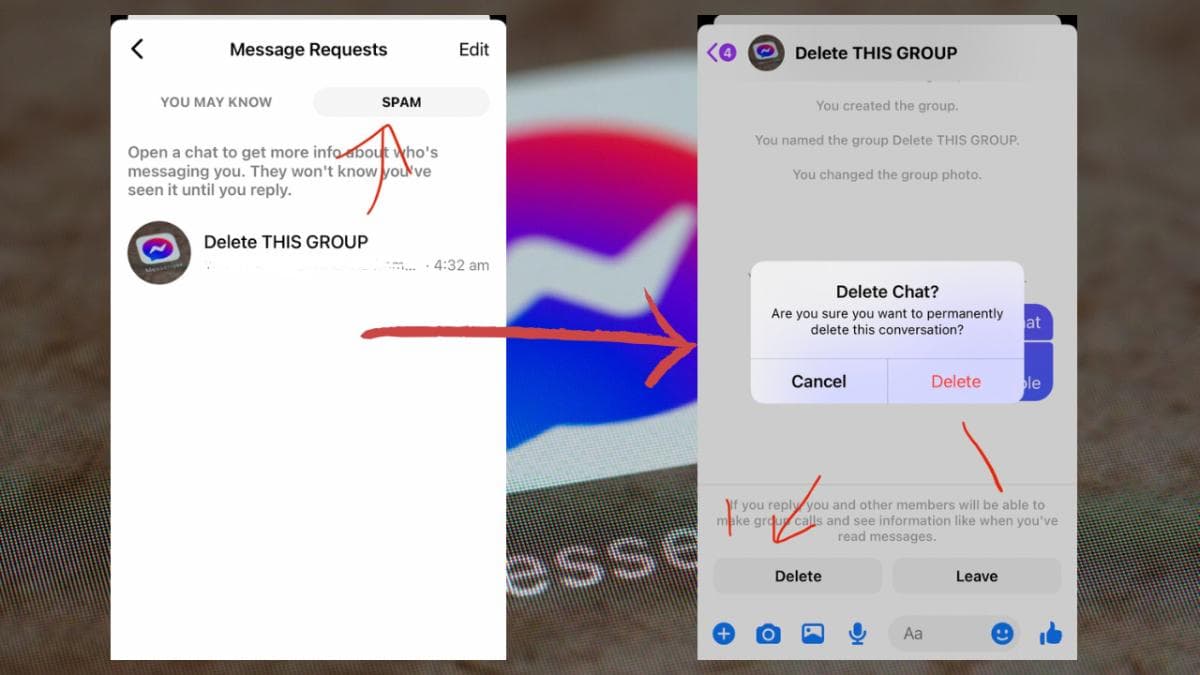
If you created the community or were assigned as an admin, you can remove the chat entirely. This wipes the discussion out for everyone inside the group.
People usually do this after an event wraps up. School committees. Temporary work discussions. Volunteer planning groups. Fantasy leagues after the season ends. You get the idea.
Here’s the process inside the Messenger app:
Open Messenger on your phone.
Tap the three horizontal lines in the top-left corner.
Find the community chat you want to remove.
Open the chat and tap the three-dot menu in the top-right corner.
Choose Delete Chat.
Confirm the deletion when Messenger asks again.
That’s it.
The chat disappears permanently once deleted. Members lose access to the conversation history tied to that specific community chat.
One thing people often miss: deleting the chat does not necessarily delete the Facebook Group itself. Those are connected, but they aren’t exactly the same thing.
Meta’s ecosystem gets weirdly layered sometimes.
This is probably the most common frustration.
You follow instructions online. You open the menu. And suddenly there’s no delete button anywhere.
Usually one of three things is happening:
You’re not an admin.
Messenger hasn’t updated yet.
The feature layout changed after an app update.
Messenger updates its interface constantly. Sometimes the menus move around without warning. It’s one of those apps where screenshots from six months ago can already look outdated.
If you are definitely an admin and still can’t find the option, try updating the app through the App Store or Google Play. Logging out and back in occasionally fixes missing menu features too.
Not glamorous advice. But weirdly effective.
Sometimes deleting or leaving feels unnecessary.
Maybe you still need occasional access to the group. Maybe it’s tied to work. Maybe your extended family would absolutely notice if you left the chat and create unnecessary drama for the next three holidays.
In those situations, hiding the community works surprisingly well.
Here’s how to do it:
Open Messenger.
Tap the three-line menu icon.
Go to the Communities section.
Tap Edit.
Uncheck the community you want hidden.
Tap Save.
The chat becomes less visible inside Messenger, which immediately cuts down on clutter.
And honestly, inbox clutter affects people more than they realize. A crowded messaging app creates this constant low-level feeling that you forgot to reply to somebody. Even when you didn’t.
A cleaner sidebar helps.
If hiding the chat still isn’t enough, leaving the community is the stronger option.
Once you leave, you stop receiving notifications and the conversation disappears from your active chat list.
The process feels slightly more complicated than it should be because Messenger redirects you through Facebook’s community settings.
Here’s the full path:
Open Messenger.
Tap the three bars to open communities and chats.
Select the community chat you want to leave.
Tap the information icon near the top-right corner.
Choose Home.
Messenger redirects you to the connected Facebook community.
Tap Joined or Join, depending on your app version.
Select Leave Group.
Confirm your decision.
Afterward, the community chat should disappear from Messenger.
There’s usually a brief delay sometimes. Meta apps don’t always sync instantly. Give it a minute or two before assuming something broke.
Leaving sounds satisfying in the moment. Then two days later somebody realizes the group shared important files, event details, or meeting updates there.
So before you leave permanently, it’s worth checking:
Do you need any photos or documents from the chat?
Are future announcements posted there?
Will leaving remove access to related Facebook groups?
Could muting notifications work instead?
Not every community needs a dramatic exit.
Sometimes muting notifications for a month solves the problem immediately. People forget that option exists because modern apps bury settings under six menus and a suspicious amount of icons.
This part rarely gets talked about, but community chats changed the feel of Messenger for a lot of users.
The app used to feel more personal. Mostly direct conversations. Small groups. Casual check-ins.
Now it can resemble a crowded office Slack workspace if you join enough communities. Notifications everywhere. Side discussions multiplying. Random reaction floods at midnight.
So if you’re trying to clean up your Messenger experience, that instinct actually makes sense. Digital fatigue is real. People don’t always notice how much background noise apps create until they start removing things.
A quieter inbox genuinely changes how stressful your phone feels.
If an admin deletes the community chat, members generally lose access to the discussion thread and message history connected to it.
However, the related Facebook group may still remain active unless the admin removes that separately.
That distinction trips people up all the time because Meta blends Messenger and Facebook communities together so tightly.
If you’re trying to fully erase the entire community setup, you may need to manage both platforms individually.
Removing a community chat in Messenger really comes down to one question: are you an admin or just a participant?
Admins can permanently delete the conversation. Participants can hide it or leave it entirely.
And honestly, either option can make Messenger feel dramatically less chaotic.
You don’t need to stay connected to every group forever. Some chats serve their purpose and then quietly expire. Cleaning them out once in a while feels surprisingly good.
Ethnic Koti Editorial Team. (2026). "How to Remove Community Chat in Messenger Without the Headache". Ethnickoti Blog. Retrieved from https://ethnickoti.com/blog/remove-community-chat-messenger
Join the conversation. Be respectful and helpful.