Apple|9 minutes Read
MacBook Overheating Fix Guide: Real Reasons Your Mac Gets Hot and How to Cool It Down
Ethnickoti

A warm MacBook isn’t automatically a problem. People panic the second the fans spin up or the aluminum body starts feeling hot near the keyboard, but honestly, modern laptops are built to run warm during demanding work. Video exports. Gaming. Thirty browser tabs you swear you still need open. It happens.
The concern starts when the heat never really goes away.
If your MacBook constantly sounds like it’s preparing for takeoff, gets uncomfortable to touch, drains battery unusually fast, or slows down while doing basic tasks, something underneath is probably stressing the system harder than it should.
And the frustrating part? The cause is often surprisingly ordinary. Not catastrophic hardware failure. Not some mysterious hidden virus. Usually it’s one or two apps quietly chewing through CPU power while you’re focused on something else.
I’ve seen MacBooks overheat because of forgotten Chrome tabs, cloud syncing loops, bad browser extensions, poorly optimized Zoom calls, even weather widgets that wouldn’t stop refreshing. Tiny things. They add up.
This guide breaks down what actually causes MacBook overheating in 2026, what’s normal, what’s not, and the fixes that genuinely help instead of the usual recycled internet advice.
MacBooks are designed to manage heat automatically. The machine slows performance temporarily, increases fan speed, and shifts power usage around before real damage happens.
So if your Mac gets warm during a 4K export or while running heavy software, that alone isn’t alarming.
The warning signs tend to look more like this:
That’s when you should start investigating properly.
This solves more overheating complaints than almost any other step.
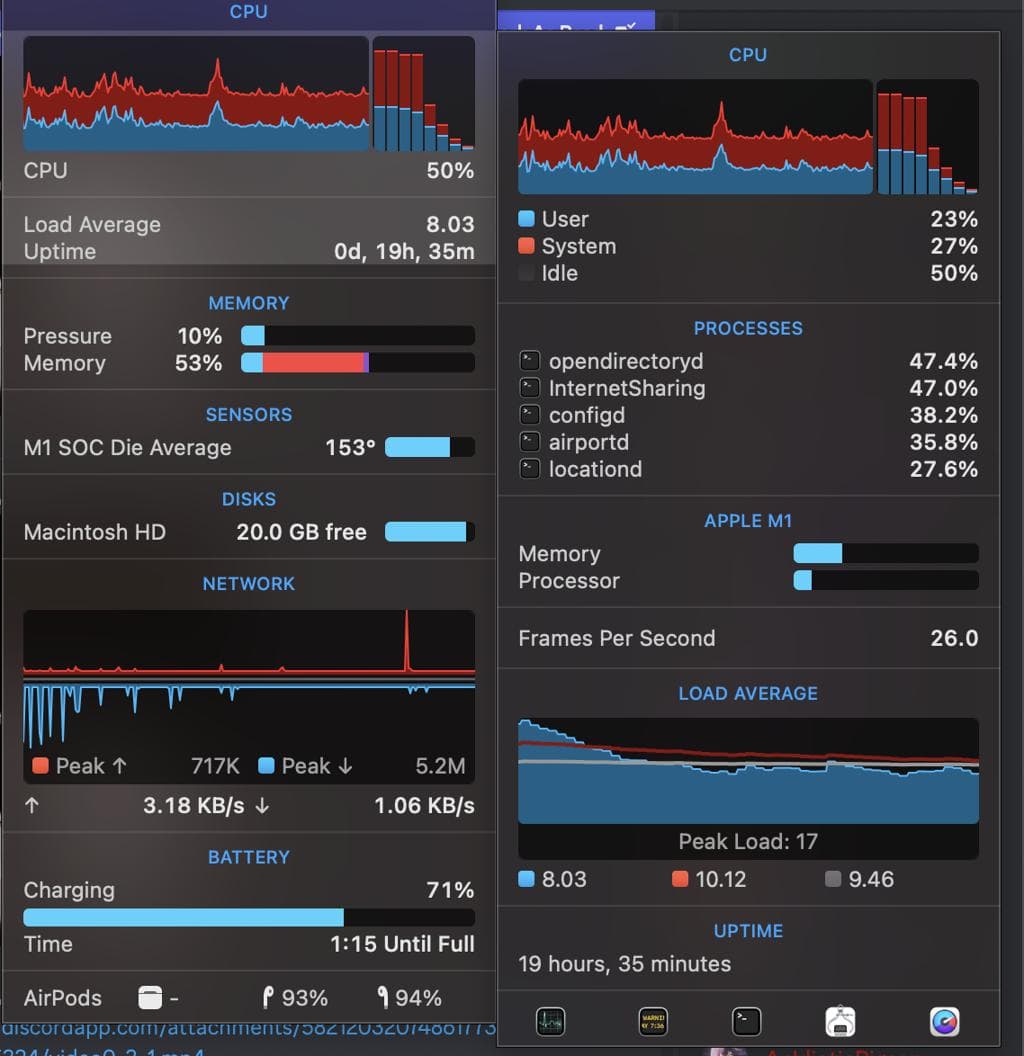
A single runaway process can make your MacBook behave like it’s rendering a Hollywood movie when all you’re doing is answering emails.
Open:
Applications → Utilities → Activity Monitor
Then check the CPU tab.
Look for apps consuming unusually high percentages for long periods. Browser processes are often the worst offenders because they hide behind dozens of separate tabs and helper tasks.
A lot of people assume “Chrome is bad” in a vague sense. But it’s usually not Chrome itself. It’s Chrome plus:
That combination can cook an Intel MacBook surprisingly fast.
Quick reality check: many “overheating” problems disappear the second a heavy browser session closes.
People underestimate how demanding modern websites have become.
Some pages now behave like miniature software applications. They constantly refresh data, stream animations, track activity, preload videos, and run scripts endlessly.
A few especially brutal examples:
Safari usually handles battery efficiency better on MacBooks, especially Apple Silicon models. That doesn’t mean you must abandon Chrome forever, but if your machine constantly runs hot, switching browsers for a day is honestly a useful test.
You’d be surprised how obvious the difference can feel.
This sounds simple because it is simple.
MacBooks cool themselves through airflow underneath and near the rear hinge area. Put the laptop on a blanket, pillow, mattress, or thick couch cushion, and you’re essentially trapping the heat right where it’s supposed to escape.
A lot of overheating complaints happen at night for exactly this reason. Laptop on bed. Streaming video. Charging at the same time. Minimal airflow.
The machine gets hotter and hotter because the heat has nowhere to go.
Even a cheap laptop stand can noticeably improve cooling because it lifts the base slightly and lets air circulate properly.
Some apps never really sleep.
Cloud syncing services are notorious for this. Especially after software updates or large file transfers.
Common heat-generating background apps include:
Sometimes these apps enter weird sync loops and repeatedly scan files for hours without you realizing it.
Check your Login Items too:
System Settings → General → Login Items
You probably don’t need half the stuff launching automatically every time your Mac starts.
This matters because many people compare their older Intel MacBook to newer M-series models and assume something is wrong.
Intel MacBooks historically generated much more heat under load. Fans ramped aggressively. The chassis got warmer. Battery life suffered during demanding work.
Apple Silicon changed that dramatically.
M1, M2, and M3 MacBooks are far more efficient, quieter, and cooler during normal use. Still, they aren’t immune to heat. Push them hard enough with gaming, AI workloads, external displays, or long video exports and temperatures absolutely climb.
The difference is mostly in how gracefully they handle it.
This gets ignored constantly.
If your room already feels hot to you, your MacBook is struggling too.
Using a MacBook in direct sunlight, inside a hot car, near windows, or during summer heatwaves pushes internal temperatures up much faster than people expect.
And charging while doing intensive work compounds the issue.
Heavy editing plus charging in a warm room? That’s basically stacking heat sources together.
Sometimes the “fix” is genuinely as boring as improving airflow in the room or moving away from direct sun.
Especially on older Intel machines.
Dust slowly collects inside cooling vents and fan assemblies over time. The process is gradual enough that people often don’t notice performance declining month by month.
Then one day the fans suddenly sound absurdly loud during simple tasks.
Classic signs of airflow blockage include:
Professional cleaning can help a lot if the MacBook is several years old and has never been serviced.
Not every USB-C charger is equal, even if the connector fits.
Low-quality adapters sometimes deliver unstable power or generate excess heat while charging. The MacBook battery management system compensates for this, but sustained poor charging conditions can still stress the system.
If your Mac suddenly started heating excessively after switching chargers, cables, or hubs, that’s worth investigating.
Certified USB-C PD chargers are usually safer than random bargain accessories with suspicious wattage claims.
Not every overheating issue is your fault.
Occasionally macOS updates introduce indexing bugs, memory leaks, or background syncing behavior that spikes CPU usage temporarily.
This is especially common right after major macOS upgrades.
The system may spend hours rebuilding photo libraries, reindexing Spotlight search data, or syncing iCloud content. During that period, heat and fan activity can increase noticeably.
If the overheating only started after a recent update, give the machine some time before assuming hardware failure.
There’s a difference between “warm” and genuinely concerning behavior.
You should seriously consider service or diagnostics if:
Battery swelling especially should never be ignored. Ever.
If your MacBook regularly runs hot, here’s a surprisingly effective combination:
None of this sounds glamorous. But small thermal improvements stack together in ways people often underestimate.
MacBook overheating problems are usually less mysterious than they seem.
Most of the time, the machine is reacting exactly how it was designed to react: more workload equals more heat. The trick is figuring out what’s creating unnecessary workload in the first place.
And honestly, modern software habits have become pretty demanding. Constant browser usage. AI tools running all day. Video calls. Cloud syncing. External displays. Background apps everywhere. Even lightweight laptops get pushed hard now.
A few careful adjustments can make a bigger difference than people expect.
Sometimes your MacBook doesn’t need repair at all. It just needs room to breathe.
Ethnic Koti Editorial Team. (2026). "MacBook Overheating Fix Guide: Real Reasons Your Mac Gets Hot and How to Cool It Down". Ethnickoti Blog. Retrieved from https://ethnickoti.com/blog/macbook-overheating-fix-guide-2026
Join the conversation. Be respectful and helpful.