Twitter|9 minutes Read
How to Use Grok AI for Free on X (Twitter) Without Paying for Premium
Ethnickoti

A strange thing happened on X over the last year. People stopped using the platform only to scroll. Now they ask questions inside it, generate images, summarize heated threads, fact-check viral claims, and occasionally argue with an AI chatbot at 2 AM for no reason at all.
That chatbot is Grok.
And despite all the confusion online, yes you can use Grok AI for free on X without buying Premium in many regions. The process is surprisingly simple once you know where the feature is hiding because, honestly, X doesn’t exactly make its interface feel calm anymore.
Some users open the app and immediately spot the Grok tab. Others don’t see it for days. A few think it’s locked behind a subscription forever because older articles still say that.
Things changed.
So if you just want to try Grok without paying, here’s the real walkthrough. No fluff. No exaggerated AI promises. Just what actually works right now.
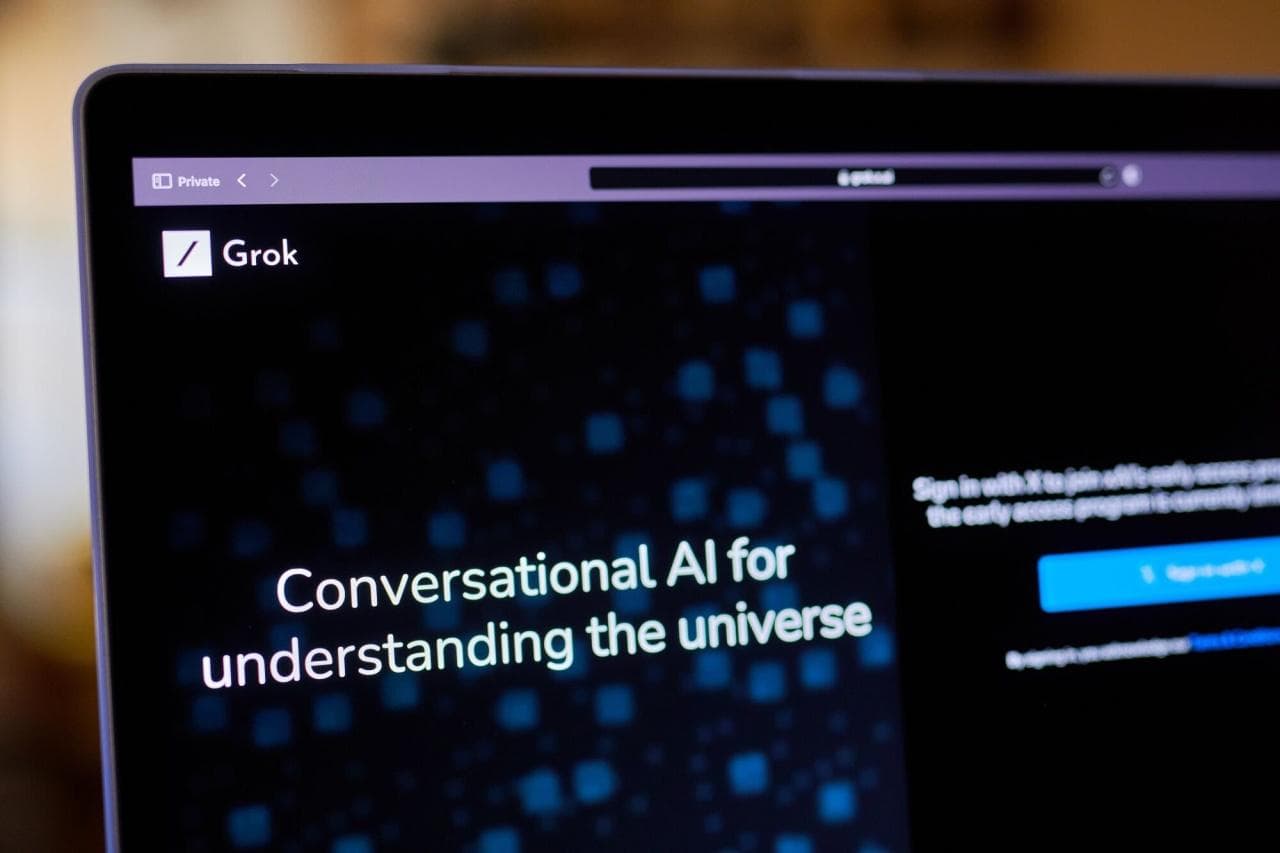
Grok is the AI assistant built into X. It was created by xAI and integrated directly into the platform instead of existing as a separate standalone app at first.
Unlike traditional chatbots that feel detached from social media, Grok pulls heavily from real-time conversations happening on X itself. That means when major events break online, Grok often responds with fresher context than older AI tools trained mostly on static web data.
Sometimes that’s useful. Sometimes it’s chaotic. Depends what side of X you land on.
You can use Grok for:
Answering questions
Summarizing long tweet threads
Generating AI images
Brainstorming captions and replies
Coding help
Real-time trend explanations
Image analysis
It feels less corporate than some AI assistants. More sarcastic at times. A little unpredictable too.
Yes, although there are a few caveats depending on your location and account status.
Originally, Grok was restricted to Premium subscribers only. That’s why older tutorials still insist you need a paid plan. But X gradually expanded access and now many regular accounts can use Grok with certain daily limits.
You might notice restrictions like:
Limited prompts per day
Reduced image generation access
Temporary feature lockouts during heavy traffic
Still, for casual use? The free version is enough for most people.
The mobile app is where most people use Grok. The interface feels cleaner there compared to desktop, oddly enough.
Launch the X app on Android or iPhone and sign into your account.
If your app hasn’t been updated in months, do that first. Seriously. Half the “Grok missing” complaints online come from outdated app versions.
Look at the bottom navigation bar. You should see a dedicated Grok icon or tab.
Tap it.
If you still don’t see it, your account may not have access yet. Logging out and back in sometimes helps. So does reinstalling the app, though that feels annoyingly old-school in 2026.
Inside the chat window, you’ll see an “Ask anything” field.
Type your question naturally. No special formatting needed.
For example:
“Summarize this thread for me”
“Explain Bitcoin like I’m 12”
“Write a funny reply to this tweet”
“Create an image of a cyberpunk cat drinking chai”
Some prompts work brilliantly. Others… not so much. AI still has moments where it sounds weirdly confident about nonsense.
Depending on your version of Grok, you may notice options like DeepSearch or Think.
DeepSearch usually generates more detailed responses with broader context. It takes slightly longer but feels more useful for research-heavy questions.
Think mode leans toward logic-based tasks like coding, math, or structured reasoning.
You don’t have to use these modes every time. For casual prompts, the default setting works fine.
Tap the attachment icon if you want Grok to analyze something.
You can upload:
Images
Documents
Screenshots
Camera photos
People use this for everything from homework help to meme explanations. Internet culture has become deeply strange.
There’s also a microphone icon for voice input.
Honestly, this is one of the smoother parts of the experience. Speaking prompts out loud feels much faster than typing long requests on a phone keyboard.
If you prefer using X in a browser, Grok works there too.
The layout is slightly different, but the features are mostly the same.
Go to X and sign into your account.
On the left sidebar, you should see the Grok option.
Click the text box and enter your prompt.
Desktop feels better for longer tasks especially if you’re asking Grok to summarize articles, generate code snippets, or brainstorm ideas for work.
Typing on a full keyboard still wins. Every time.
Click the attachment icon near the prompt box and select files from your PC or laptop.
This is especially handy for PDFs, screenshots, and presentations you want Grok to explain or summarize.
Your previous conversations are stored inside the History section.
Useful if you’re jumping between projects or trying to find that one surprisingly good AI answer you forgot to save.
Not every AI feature deserves hype. Plenty are gimmicks wearing expensive branding.
But Grok has a few genuinely useful strengths.
Because Grok is tied closely to X, it understands trending topics faster than many traditional AI systems.
That makes it useful during live events, sports reactions, tech launches, or internet drama exploding in real time.
This one saves actual time.
Instead of reading a 42-post thread filled with side arguments and meme replies, you can ask Grok for the core takeaway.
Your brain will thank you.
Some AI assistants sound painfully sterile. Grok doesn’t, at least not most of the time.
It often responds more casually and with a little personality. That won’t appeal to everyone, but it makes interactions feel less robotic.
Usually caused by account rollout delays or outdated app versions.
Try:
Updating X
Logging out and back in
Reinstalling the app
Waiting for regional rollout access
Free users may hit prompt caps after extended use.
This usually resets later, although X rarely explains the exact limits clearly.
Classic X behavior, honestly.
Heavy server traffic can slow Grok down considerably during major news events.
If responses stall, waiting a few minutes usually fixes it.
For free access? Absolutely worth trying.
It’s not perfect. No AI tool is, despite what marketing pages claim. Grok still hallucinates facts occasionally, misunderstands context, and can become strangely overconfident.
But as an integrated AI assistant inside a social platform, it’s surprisingly practical.
Especially for people who already spend too much time on X anyway.
And let’s be honest most of us do.
Not necessarily anymore. Many users can access Grok for free with limited usage. Premium plans may still offer higher limits and early access to newer features.
The feature may not be available in your region yet, or your app could be outdated. Updating the app and signing back in often helps.
Yes, although free accounts may face generation limits depending on server load and current platform restrictions.
They’re built differently. Grok feels more connected to live social conversations, while ChatGPT generally handles structured writing and deeper explanations more consistently.
Yes. Grok works inside the X mobile app and through the desktop website as long as your account has access enabled.
That’s really all you need to get started. Open X, find the Grok tab, ask something mildly chaotic, and see where the conversation goes from there.
Ethnic Koti Editorial Team. (2026). "How to Use Grok AI for Free on X (Twitter) Without Paying for Premium". Ethnickoti Blog. Retrieved from https://ethnickoti.com/blog/how-to-use-grok-ai-for-free-on-x-twitter
Join the conversation. Be respectful and helpful.