WhatsApp|11 minutes Read
WhatsApp Notifications Not Working? Here’s How to Fix Them in 2026
Ethnickoti

Few phone problems are as strangely frustrating as broken WhatsApp notifications.
You pick up your phone an hour later and suddenly twelve messages arrive at once. Friends think you ignored them. Work groups explode while your device sits there in complete silence. Sometimes WhatsApp only updates after you manually open the app, which feels oddly primitive for something people rely on every single day.
And the annoying part? The problem usually isn’t WhatsApp itself.
Modern phones aggressively manage battery life, background activity, notifications, sync permissions, and app behavior. Useful in theory. Slightly chaotic in practice.
This guide walks through the fixes that actually matter in 2026, including Android quirks, iPhone Focus mode issues, delayed message alerts, silent notifications, and those bizarre cases where WhatsApp Web stops notifying entirely.
This sounds obvious, but people skip it constantly because they assume app notifications are enabled by default forever.
Updates can reset things. Notification channels sometimes glitch. A muted group from two years ago quietly stays muted indefinitely.
Open:
WhatsApp → Settings → Notifications
Then verify:
Conversation tones are enabled
Message notifications are active
Group alerts aren’t muted
Popup or banner notifications are allowed
Sometimes the issue is embarrassingly small. A disabled sound setting. A forgotten silent mode. Happens more than people admit.
Your phone’s operating system has final authority over notifications. If Android or iOS blocks WhatsApp permissions, the app can’t really fight back.
Go to:
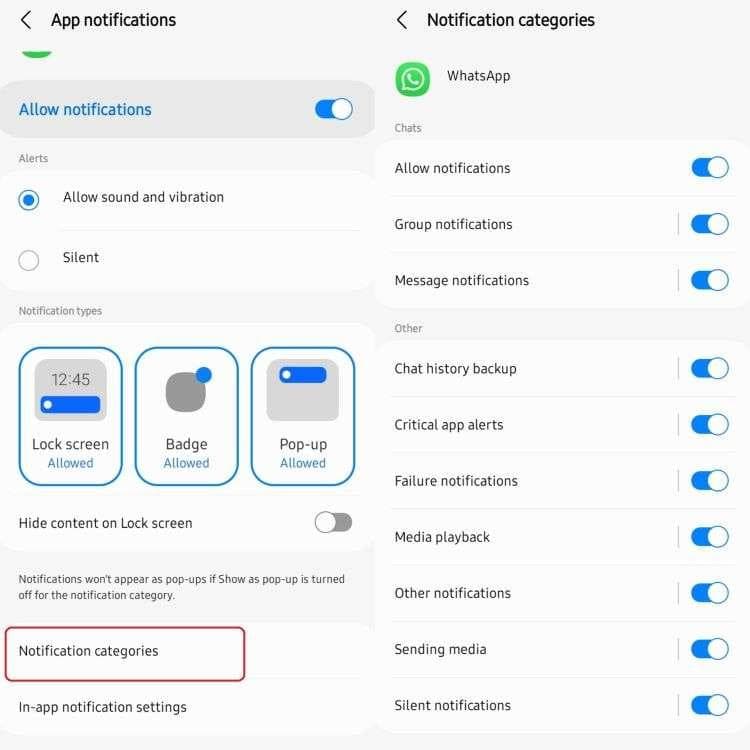
Settings → Apps → WhatsApp → Notifications
Enable:
Allow Notifications
Lock screen notifications
Pop-up notifications
Sound and vibration
Settings → Notifications → WhatsApp
Check that these are active:
Allow Notifications
Sounds
Badges
Banners
Lock Screen visibility
One disabled permission can make notifications appear half-broken in weird ways.
Especially on Android.
Manufacturers became extremely aggressive about battery saving over the last few years. Phones now routinely kill background apps to stretch battery life, and messaging apps often get caught in that cleanup process.
The result looks familiar:
Messages only arrive after opening WhatsApp
Notifications delay by several minutes
Calls don’t ring properly
Settings → Apps → WhatsApp → Battery
Then select:
Unrestricted
If your phone has extra battery-saving systems, disable them temporarily for testing.
Honestly, this single fix solves the majority of delayed WhatsApp notification problems on Android devices.
This one catches people constantly because Focus modes feel subtle. You may still receive messages normally, but alerts disappear or stay silent.
Especially overnight.
Settings → Sound → Do Not Disturb
Settings → Focus
Check whether WhatsApp is excluded or silenced.
Sometimes users accidentally create Focus schedules and forget they exist. Then every evening the phone quietly suppresses alerts without explanation.
Apple manages background activity differently than Android. If Background App Refresh is disabled, WhatsApp can struggle to update consistently while inactive.
Open:
Settings → General → Background App Refresh
Enable it for WhatsApp.
If notifications suddenly appear only after manually opening the app, this setting is often involved somewhere in the chain.
People usually blame WhatsApp first when the real issue is unstable connectivity.
Push notifications rely on continuous background communication with servers. If your phone repeatedly drops connection, notifications can stall unpredictably.
Things worth trying:
Switch between Wi-Fi and mobile data
Restart your router
Disable VPN services temporarily
Test another messaging app to compare behavior
VPNs, especially free ones, cause more notification issues than many users realize.
Android phones sometimes block apps from using mobile data in the background, particularly when Data Saver mode is active.
The app technically works. Messages still send eventually. But notifications become inconsistent.
Settings → Apps → WhatsApp → Mobile Data & Wi-Fi
Enable:
Background Data
Unrestricted Data Usage
Especially important if your device automatically enables data-saving profiles while traveling or during low battery conditions.
Android cache corruption sounds technical, but it’s basically temporary app clutter causing weird behavior.
Notification bugs occasionally disappear immediately after clearing cache.
Settings → Apps → WhatsApp → Storage → Clear Cache
Do not tap Clear Data unless you’ve backed up chats and genuinely need a full reset.
People mix those two buttons up all the time. Painful mistake.
Tech advice loves sounding complicated, but phones still behave unpredictably after updates, crashes, and memory conflicts.
Restarting your device refreshes:
Push notification services
Background sync processes
Temporary system conflicts
Especially after major operating system updates, a reboot can solve issues that look far more serious.
Notification systems change constantly behind the scenes. An old version of WhatsApp may not communicate properly with newer Android or iOS updates.
Check your app store and install the latest version.
This matters even more on beta software or recently updated devices.
Desktop notifications fail for completely different reasons compared to phones.
Browsers and desktop operating systems both control notification permissions independently.
Allow browser notifications
Keep WhatsApp Web tab active
Disable Focus Assist on Windows if necessary
Enable desktop notifications inside the app
Allow launch at startup
Check system notification permissions
Desktop notification bugs often come down to browser restrictions nobody remembers approving months ago.
Certain Android manufacturers are notorious for aggressively shutting down background apps.
Samsung, Xiaomi, OnePlus, Vivo, and similar brands often include additional “smart optimization” systems beyond normal Android controls.
You may need to disable:
Deep sleeping apps
Auto optimization
Aggressive RAM cleanup
Smart battery management
Then add WhatsApp to protected or never-sleeping app lists.
A little annoying, honestly. But very common.
At some point, a clean reinstall becomes the fastest path forward.
Before uninstalling:
Back up your chats
Verify Google Drive or iCloud backup completion
Restart the device after uninstalling
Then reinstall the newest version and restore your backup.
It sounds dramatic, but corrupted notification channels sometimes refuse to behave until the app environment is rebuilt completely.
Most WhatsApp notification problems trace back to three things:
Battery optimization
Background restrictions
Notification permissions
Android users usually fix the issue by allowing unrestricted battery usage. iPhone users often discover Focus mode or Background App Refresh was quietly interfering all along.
And sometimes? The fix really is just restarting the phone after spending an hour trying everything else.
Technology has a sense of humor like that.
Ethnic Koti Editorial Team. (2026). "WhatsApp Notifications Not Working? Here’s How to Fix Them in 2026". Ethnickoti Blog. Retrieved from https://ethnickoti.com/blog/fix-whatsapp-notifications-not-working-2026
Join the conversation. Be respectful and helpful.