Discord|10 minutes Read
Discord Streaming Quality Problems? Here’s What Actually Fixes Them in 2026
Ethnickoti

A bad Discord stream has a very specific kind of frustration to it. You’re mid-game, something chaotic happens, your friends are watching, and suddenly the stream turns into a blurry slideshow that looks like it’s being transmitted through a microwave from 2009.
Or worse the stream looks perfectly fine to you, but everyone else is seeing stutters, audio delays, frozen frames, or that weird pixel-smearing effect Discord sometimes does when upload bandwidth collapses for half a second.
The annoying part is that Discord streaming issues rarely come from one single problem. It’s usually a combination. A slightly overloaded GPU. A browser tab eating RAM in the background. Discord overlay fighting your game engine. Wi-Fi jitter. Maybe hardware acceleration decided to betray you after a driver update. Happens more often than people think.
This guide breaks down the fixes that actually make a difference in 2026. Not random checkbox suggestions copied across forums. Real fixes. The kind you notice immediately after restarting a stream.
People usually assume Discord itself is the issue. Sometimes it is. But most streaming problems come from your system struggling to encode video fast enough while also running a game, voice chat, browser tabs, overlays, launchers, RGB software, updates, and whatever else quietly boots with Windows these days.
A Discord stream is constantly balancing three things at once:
Internet upload stability
GPU video encoding performance
Discord’s own compression and bitrate limits
When even one of those starts wobbling, the stream quality tanks fast.
Small detail most people miss: streaming at high FPS usually hurts stability more than streaming at high resolution.
A powerful graphics card won’t save a weak upload connection. Discord streams rely heavily on consistent upload bandwidth, not just peak speed.
A lot of people run a speed test, see “100 Mbps internet,” and assume everything should work flawlessly. Then they realize their upload speed is only 4 Mbps because their ISP prioritized download traffic.
For stable Discord streaming, these numbers tend to work comfortably:
720p at 30 FPS: around 5 Mbps upload
1080p at 60 FPS: ideally 10 15 Mbps upload
Fast-action games like Apex, Valorant, or Warzone: even more headroom helps
What matters more than raw speed, though, is consistency. Tiny upload dips create the “pixel explosion” effect viewers complain about.
If your stream quality changes randomly during the day, there’s a decent chance your Wi-Fi is the real culprit.
Wi-Fi 6 is good. Modern routers are good. But Ethernet is boringly reliable, and boring reliability is exactly what streaming needs.
The difference becomes obvious during longer streams. Fewer random quality drops. Less buffering. More stable bitrate behavior.
Not glamorous. Very effective.
This one surprises people.
If your Discord stream is lagging or stuttering, reducing FPS usually helps more than reducing resolution. A shaky 1080p60 stream looks worse than a clean 720p30 stream almost every single time.
Discord’s encoder has to process every frame you send. Double the frame rate means double the workload.
People tend to push 60 FPS because it sounds better on paper. Realistically, unless you’re sharing competitive gameplay, 30 FPS is often the sweet spot for stability.
Low-end or older PCs: 720p / 30 FPS
Mid-range systems: 1080p / 30 FPS
High-end gaming rigs: 1080p / 60 FPS if upload and GPU can handle it
There’s no shame in lower settings. A stable stream feels dramatically more professional than a flashy one that constantly buffers.
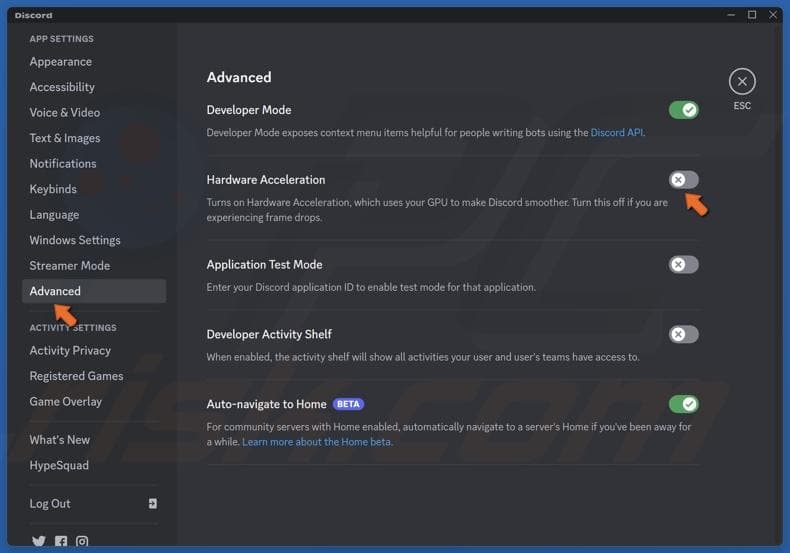
Discord’s hardware acceleration setting is weirdly inconsistent across systems.
For some people, enabling it immediately improves stream smoothness because the GPU handles encoding more efficiently. For others, especially after graphics driver updates, it creates black screens, crashes, or blurry streams.
That’s why this fix sounds contradictory online. Because both answers can be correct.
Open Discord Settings
Go to Advanced
Toggle Hardware Acceleration
Restart Discord completely
Then test a stream again.
A lot of black-screen problems disappear immediately after changing this one setting.
Discord overlay sounds useful. In practice, it frequently interferes with games, especially after major Windows or GPU updates.
It can reduce FPS, create capture conflicts, and occasionally cause streaming artifacts that look like internet problems.
The fix is simple:
Open User Settings
Go to Game Overlay
Disable “Enable In-Game Overlay”
You probably won’t miss it.
This is where things get sneaky.
You might think Discord is struggling, when actually Chrome is sitting there with 34 tabs open consuming half your RAM and GPU acceleration.
Some of the biggest streaming killers in 2026:
OBS running in the background
Cloud syncing apps
Browser tabs with video playback
Game launchers updating silently
NVIDIA ShadowPlay or AMD ReLive
Windows updates downloading in the background
People underestimate how quickly multiple “small” processes add up.
If your stream quality suddenly improves after restarting your PC, background processes were probably the real issue all along.
Discord relies heavily on GPU encoding. So when graphics drivers become unstable, streaming quality often breaks before gaming performance does.
Typical symptoms include:
Black screens while streaming
Streams freezing after alt-tabbing
Heavy pixelation during motion
Audio staying active while video dies
Updating drivers fixes this surprisingly often.
But here’s the part nobody mentions enough: sometimes the newest driver causes the issue. Rolling back to a previous stable version can help too.
Especially with NVIDIA updates. They’ve improved a lot, but occasional Discord conflicts still happen.
This sounds unrelated, yet it matters more than expected.
A poor voice region can increase latency and destabilize stream delivery. If viewers complain about buffering or delayed audio, switching the region sometimes fixes it instantly.
Good region options usually depend on your location, but common stable choices include:
Singapore
India
Western Europe
If Auto keeps failing, manual region selection is worth trying.
Discord black-screen bugs are strangely specific. Sometimes games stream fine while browsers fail. Sometimes Netflix goes black because of DRM protection. Sometimes fullscreen mode breaks capture entirely.
The fixes that consistently help:
Run Discord as Administrator
Disable browser hardware acceleration
Switch between fullscreen and borderless window mode
Add the game manually under Activity Status
Restart Discord after changing graphics settings
The fullscreen trick feels oddly primitive, but it works a shocking amount of the time.
People sometimes buy Nitro expecting magically crisp streams.
Nitro does increase available stream quality options. Higher resolutions. Better FPS support. Cleaner compression in some cases.
Still, if your upload speed is unstable or your GPU is overloaded, Nitro won’t solve the core problem.
It’s more like removing a speed limiter from a car. Helpful only if the engine is already running properly.
After testing dozens of combinations across different systems, this setup tends to produce the fewest complaints from viewers:
720p or 1080p resolution
30 FPS unless your system is genuinely strong
Ethernet connection
Discord overlay disabled
Updated GPU drivers
Minimal background applications
Simple setups usually outperform overloaded “optimized” ones.
Most troubleshooting guides throw “reinstall Discord” at every problem. Usually too early.
But if your stream issues started after a failed update, persistent crashes, or corrupted cache behavior, a clean reinstall genuinely helps.
The important part is deleting leftover cache folders after uninstalling. Otherwise you’re basically reinstalling the same broken setup.
And yes, restarting your PC afterward still matters. Boring advice again. Effective advice too.
Most Discord streaming problems look more dramatic than they really are.
A blurry stream usually comes down to unstable upload speed. A black screen often traces back to hardware acceleration or overlay conflicts. Laggy streams? Usually FPS settings pushed too high for the system.
People tend to chase complicated fixes first. In reality, the biggest improvements often come from surprisingly small changes:
Using Ethernet
Lowering FPS
Disabling overlay
Closing background apps
Restarting Discord properly
Not exciting fixes. Just the ones that keep streams stable when people are actually watching.
Ethnic Koti Editorial Team. (2026). "Discord Streaming Quality Problems? Here’s What Actually Fixes Them in 2026". Ethnickoti Blog. Retrieved from https://ethnickoti.com/blog/discord-streaming-quality-fix-guide-2026
Join the conversation. Be respectful and helpful.