Discord|10 minutes Read
Discord Mic Not Working? Here’s the Fix Guide People Actually Need in 2026
Ethnickoti

There’s a very specific kind of frustration that comes from talking into Discord while everyone keeps saying, “We can’t hear you.”
Especially when the microphone worked yesterday.
Or worse it works perfectly in Zoom, OBS, Google Meet, even the Windows Voice Recorder app… but Discord acts like your mic simply doesn’t exist.
That usually means the problem isn’t your headset. It’s a settings conflict somewhere between Discord, your operating system, browser permissions, drivers, or audio processing features trying too hard to be “smart.”
The annoying part is that Discord microphone issues rarely have one universal cause. Tiny things break audio. A Windows update. A browser permission reset. Noise suppression. Bluetooth confusion. Sometimes Discord randomly switches to the wrong input device after an update and quietly ruins your evening.
So instead of throwing twenty random fixes at you all at once, this guide walks through the ones that actually solve the problem most often in 2026.
Discord microphone issues usually fall into a few categories.
Nobody hears you at all
Your mic icon lights up but there’s no audio
Voice cuts in and out randomly
Discord says “No Input Detected”
The mic works in every other app except Discord
That last one is surprisingly common now.
And honestly, it’s usually fixable without reinstalling your whole system or buying a new headset.
This sounds painfully obvious. Still worth checking first.
Discord occasionally switches microphones after updates, device reconnects, Bluetooth pairing changes, or USB reconnects. If you use multiple audio devices webcam mic, USB headset, wireless earbuds, desktop microphone Discord can get confused fast.
Open Discord
Click the gear icon beside your username
Open Voice & Video
Under Input Device, manually select your microphone
Speak normally and watch the input meter
If the bar doesn’t move at all, Discord isn’t receiving audio.
If it moves but people still can’t hear you, the issue probably lives somewhere else in the audio chain.
A weird little detail: USB microphones sometimes reconnect under slightly different names after updates. Discord may treat them like brand-new devices.
Closing the Discord window doesn’t always fully close Discord.
That catches people constantly.
The app usually keeps running in the background, and sometimes its audio subsystem gets stuck there in a broken state.
Press Ctrl + Shift + Esc
Open Task Manager
End every Discord process you see
Launch Discord again
Right-click Discord in the Dock
Choose Force Quit
Reopen the app
Simple fix. Weirdly effective.
Modern operating systems are aggressive about privacy permissions now. Sometimes a Windows update or browser patch quietly revokes microphone access without telling you clearly.
Discord then sits there waiting for audio it’s no longer allowed to receive.
Open Settings
Go to Privacy & Security
Select Microphone
Enable microphone access
Make sure Discord is allowed specifically
Open System Settings
Privacy & Security
Microphone
Enable Discord access
Restart Discord afterward. Sometimes even rebooting the whole system helps permissions refresh properly.
This one surprises people.
Noise suppression tools are supposed to improve your voice. Occasionally they do the opposite.
Krisp, echo cancellation, automatic gain control, noise reduction these features can conflict with certain microphones, USB interfaces, Bluetooth headsets, or even other audio software already running on your PC.
The result? Choppy voice. Audio gates cutting your sentences off. Robot-sounding distortion. Entire microphone failure sometimes.
Krisp Noise Suppression
Noise Reduction
Echo Cancellation
Automatic Gain Control
Then test your mic again after each change.
Good microphones often sound cleaner with most processing disabled anyway.
Counterintuitive, maybe. But true.
Windows has a feature allowing applications to take “exclusive control” of audio devices.
Sometimes another program grabs your microphone first and Discord gets locked out.
OBS, streaming software, DAWs, voice changers, webcam utilities these are common culprits.
Right-click the sound icon
Open Sound Settings
Choose your input device
Open More Sound Settings
Recording tab
Double-click your microphone
Advanced tab
Uncheck “Allow applications to take exclusive control”
Restart Discord after changing it.
Sometimes Discord’s audio configuration just gets… weird.
Sensitivity levels drift. Devices fail to refresh properly. Hidden conflicts pile up quietly after updates.
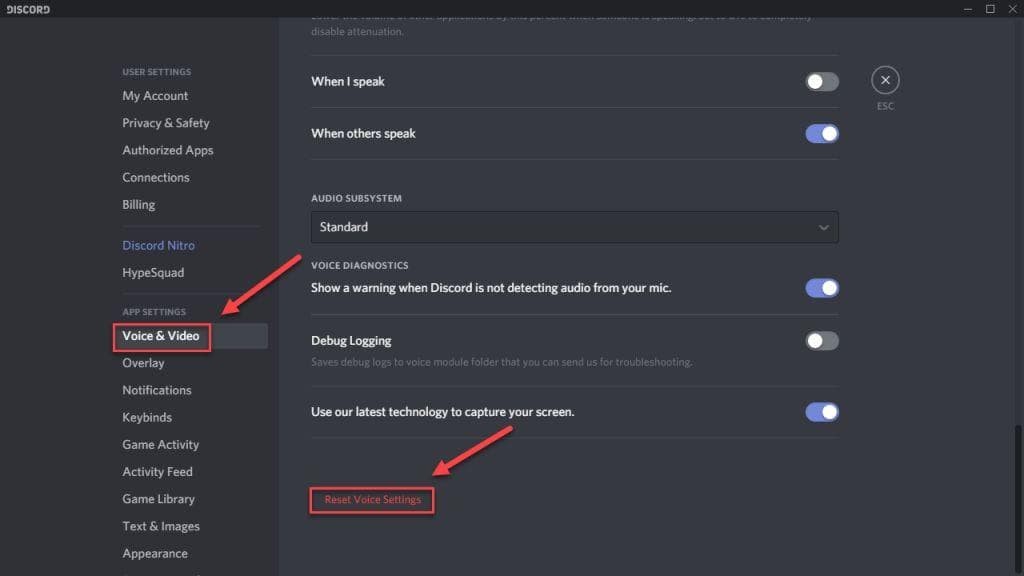
Resetting voice settings wipes out a lot of that accumulated mess.
Open Discord Settings
Go to Voice & Video
Scroll all the way down
Click Reset Voice Settings
Not glamorous. Still one of the highest-success fixes.
Discord Web behaves differently from the desktop app. Browser permissions matter here a lot.
Chrome and Edge occasionally block microphone access after updates, security resets, or privacy changes.
Open Discord in your browser
Click the lock icon beside the URL
Enable microphone access
Refresh the page
Also check if another browser tab is already using your microphone. Google Meet and browser-based recording apps can interfere quietly in the background.
Discord’s automatic voice detection occasionally struggles with quieter voices, low-gain microphones, or noisy environments.
The result is frustrating because it sounds like your microphone keeps randomly muting itself.
You start speaking. Half the sentence disappears.
Try switching temporarily to Push-to-Talk.
If your voice suddenly becomes stable, the issue probably involves sensitivity detection rather than the microphone hardware itself.
Manual sensitivity settings also tend to work better than automatic ones for many setups now.
Audio drivers fail in quieter ways these days.
You don’t always get dramatic crashes or blue screens anymore. Sometimes devices simply stop communicating properly with certain apps.
Discord notices first because real-time voice communication is sensitive to tiny audio inconsistencies.
Open Device Manager
Expand Audio Inputs and Outputs
Right-click your microphone
Choose Update Driver
If you use gaming headsets from Logitech, SteelSeries, Razer, HyperX, or Corsair, check the manufacturer’s software too. Firmware updates sometimes matter more than Windows drivers now.
Not just uninstalling. A proper clean reinstall.
Discord caches old configuration files aggressively. Corrupted settings can survive normal reinstalls.
Uninstall Discord completely
Delete Discord cache folders
Restart your computer
Download the latest version from Discord’s official site
It feels excessive. Yet sometimes it’s the thing that finally fixes bizarre audio behavior nobody can otherwise explain.
At a certain point, you need to test outside Discord entirely.
Open Voice Recorder. Try Zoom. Use OBS. Test Google Meet.
If the microphone fails everywhere, Discord probably isn’t the problem anymore.
And honestly, headset hardware fails more often than people think. USB ports wear out. Cables loosen internally. Wireless dongles become unstable. Bluetooth audio stacks occasionally break after firmware updates.
One of the most common “Discord mic problems” is simply a dying headset that only partially works.
Quick reality check: if your mic disconnects when you move the cable slightly, you probably found the real issue.
After testing a ridiculous number of setups over the years, cleaner audio usually comes from simpler settings.
Input Sensitivity: Manual
Input Volume: Around 90%
Automatic Gain Control: Off
Noise Suppression: Off if your microphone already sounds clean
Echo Cancellation: Usually safe to keep enabled
People sometimes overprocess their audio trying to sound “professional.” Ironically, Discord often behaves more reliably with fewer effects interfering.
And once the mic finally works again? Maybe don’t touch the settings for a while.
Ethnic Koti Editorial Team. (2026). "Discord Mic Not Working? Here’s the Fix Guide People Actually Need in 2026". Ethnickoti Blog. Retrieved from https://ethnickoti.com/blog/discord-mic-not-working-fix-guide-2026
Join the conversation. Be respectful and helpful.