Android|11 minutes Read
Why Your Android Phone Loses Battery Overnight — And the Fixes That Actually Help
Ethnickoti

There’s a particular kind of irritation that comes from waking up, grabbing your phone off the nightstand, and seeing the battery somehow dropped from 82% to 51% while you were asleep.
You weren’t gaming. You weren’t doomscrolling at 2 AM. The phone just sat there quietly... draining itself.
And strangely, a lot of people assume this is normal now.
It isn’t. Not really.
A healthy Android phone should usually lose somewhere around 2% to 8% overnight. Maybe slightly more if you keep Wi-Fi, Bluetooth, location services, smartwatches, background syncing, and a dozen social apps running simultaneously.
But consistent overnight battery loss above 15%? That’s usually a sign something in the background is misbehaving.
Sometimes it’s an app. Sometimes bad signal strength. Occasionally it’s just an aging battery quietly giving up after years of fast charging and heat exposure.
The good news is most overnight battery drain problems are fixable. Or at least dramatically improvable.
People often start randomly disabling features before checking what’s causing the problem. That usually creates more confusion than results.
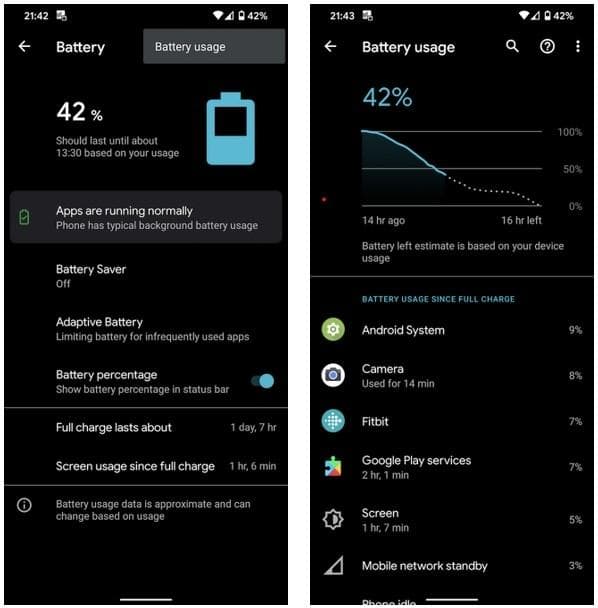
Android already gives surprisingly detailed battery information if you know where to look.
Go to:
Settings
Battery
Battery Usage or Usage Since Last Charge
Look for apps consuming power overnight while the screen was off.
The usual suspects tend to appear repeatedly:
TikTok
Snapchat
VPN apps
Google Play Services
Weather widgets constantly refreshing
Social apps are particularly aggressive because they constantly refresh feeds, fetch notifications, sync media, and track activity in the background.
Sometimes uninstalling one badly optimized app fixes more battery drain than ten separate settings tweaks.
A surprising number of users accidentally disable Android’s battery optimization because an app tells them to.
Fitness apps do it. Messaging apps do it. Smartwatch apps especially love asking for unrestricted battery access.
And sure, sometimes it’s necessary. But if too many apps run unrestricted, your phone basically never sleeps.
Check battery permissions manually:
Settings
Apps
Select the app
Battery
For problematic apps, choose:
Optimized
Restricted
The “Unrestricted” option should honestly be reserved for apps you genuinely need running nonstop.
Most people don’t need half their apps awake all night like caffeinated interns.
Always-On Display looks elegant. Especially on OLED phones.
But it absolutely contributes to overnight drain.
Samsung users feel this particularly hard because Galaxy phones tend to combine Always-On Display with high refresh rates, background syncing, edge lighting, and aggressive notifications.
Tiny drains add up.
To disable it:
Settings
Display
Always-On Display
Turn it off
Or at least schedule it instead of leaving it active 24/7.
Honestly, most people aren’t staring at their lock screen while asleep anyway.
This one surprises people.
Your phone burns extra battery when it struggles to maintain a signal. The modem constantly searches for stronger connections, switches towers, and fights weak reception.
If you sleep in:
A basement
A rural area
A weak 5G zone
Buildings with thick concrete walls
…your battery drain may have almost nothing to do with apps.
5G makes this worse in some regions because phones aggressively hunt for unstable 5G connections even when LTE would work perfectly fine.
A few fixes help immediately:
Switch preferred network type to LTE
Use Wi-Fi calling
Enable Airplane Mode overnight
Airplane Mode remains one of the most effective overnight battery-saving tricks. Almost boringly effective.
120Hz displays spoiled everyone.
Once you get used to smooth scrolling, going back to 60Hz feels oddly choppy for a day or two.
But higher refresh rates absolutely increase battery consumption.
And during standby, certain phones still consume more power maintaining adaptive refresh behavior in the background.
You can lower it manually:
Settings
Display
Motion Smoothness or Refresh Rate
Switch to 60Hz
Samsung, OnePlus, Xiaomi, and Pixel devices all benefit noticeably from this if overnight drain has become frustrating.
Not permanently maybe. But at least as a test.
Google Photos uploading overnight. Gmail syncing multiple accounts. Cloud backups running. Smart home apps checking devices repeatedly.
All small individually.
Together? Not always small.
If your battery drain suddenly worsened after installing new apps or changing cloud settings, syncing may be responsible.
Check auto-sync settings:
Settings
Accounts
Auto-sync Data
You don’t necessarily need to disable everything. Just reduce syncing for apps you rarely use.
Some people unknowingly sync six Google accounts simultaneously. Phones suffer quietly.
Android’s Adaptive Battery feature sounded gimmicky when it first appeared.
Turns out it genuinely works reasonably well now.
It studies app usage patterns and limits background activity for apps you barely touch.
Enable it here:
Settings
Battery
Adaptive Battery
Turn it on
It’s not instant magic. The system improves gradually after learning your usage habits.
People restart laptops constantly.
Phones? Somehow not.
Background services occasionally bug out. Apps get stuck in sync loops. Memory management becomes messy after weeks of uptime.
A simple reboot fixes more weird Android behavior than tech enthusiasts sometimes want to admit.
At least restart every few days. Especially if overnight drain suddenly appears out of nowhere.
Not every battery problem has a software solution.
If your phone is two to four years old, battery degradation becomes increasingly likely.
Common warning signs include:
Overheating
Rapid percentage drops
Unexpected shutdowns
Battery drain worsening monthly
Apps like AccuBattery can estimate battery health fairly well, though they’re not perfectly accurate.
At some point, replacing the battery becomes more effective than endlessly tweaking settings.
And honestly, a fresh battery can make an older Android phone feel surprisingly new again.
After testing dozens of Android devices over the years, the same fixes consistently help the most people:
Restricting aggressive background apps
Turning off Always-On Display
Using Airplane Mode overnight
Lowering refresh rate temporarily
Updating apps and system software
Most overnight battery problems aren’t caused by one catastrophic issue. It’s usually five or six smaller drains stacking together quietly.
Fix enough of those, and suddenly your phone stops dying while you sleep.
Ethnic Koti Editorial Team. (2026). "Why Your Android Phone Loses Battery Overnight — And the Fixes That Actually Help". Ethnickoti Blog. Retrieved from https://ethnickoti.com/blog/android-battery-drain-overnight-fix
Join the conversation. Be respectful and helpful.