LinkedIn|9 minutes Read
How to Upload Your Resume on the LinkedIn Mobile App Without Getting Lost in the Menus
Ethnickoti

There’s a weird moment almost everyone has on LinkedIn at some point. You open the app thinking, “This will take two minutes,” and then suddenly you’re five menus deep trying to figure out where your resume actually goes.
The LinkedIn mobile app isn’t exactly confusing on purpose. It just hides important things in places you wouldn’t naturally expect. Resume uploads are one of them.
And honestly, if you’re applying for jobs from your phone which most people do now during commutes, lunch breaks, or late-night scrolling sessions knowing where that upload option lives saves a surprising amount of frustration.
This guide walks through the cleanest ways to upload your resume using the LinkedIn mobile app. No unnecessary filler. No desktop instructions awkwardly stuffed into a mobile article. Just the stuff that actually works.
A lot of people assume LinkedIn profiles have replaced resumes entirely. Not really.
Recruiters still ask for resumes because they’re easier to skim, easier to forward internally, and usually formatted around actual hiring decisions instead of networking.
Your profile tells a broader story. Your resume gets to the point faster.
Uploading your resume to LinkedIn also speeds up job applications dramatically. Especially with Easy Apply jobs. Once your file is stored in the app, LinkedIn can reuse it for future applications so you’re not hunting through folders every single time.
Small thing. Big convenience.
This is probably the cleanest method because it stores your resume ahead of time. If you plan on applying for multiple jobs later, do this first instead of uploading the same PDF over and over.
Open the LinkedIn app on your phone.
Tap your profile picture in the top-left corner.
Select Settings.
Tap Data privacy.
Scroll until you see Job seeking preferences.
Tap Job application settings.
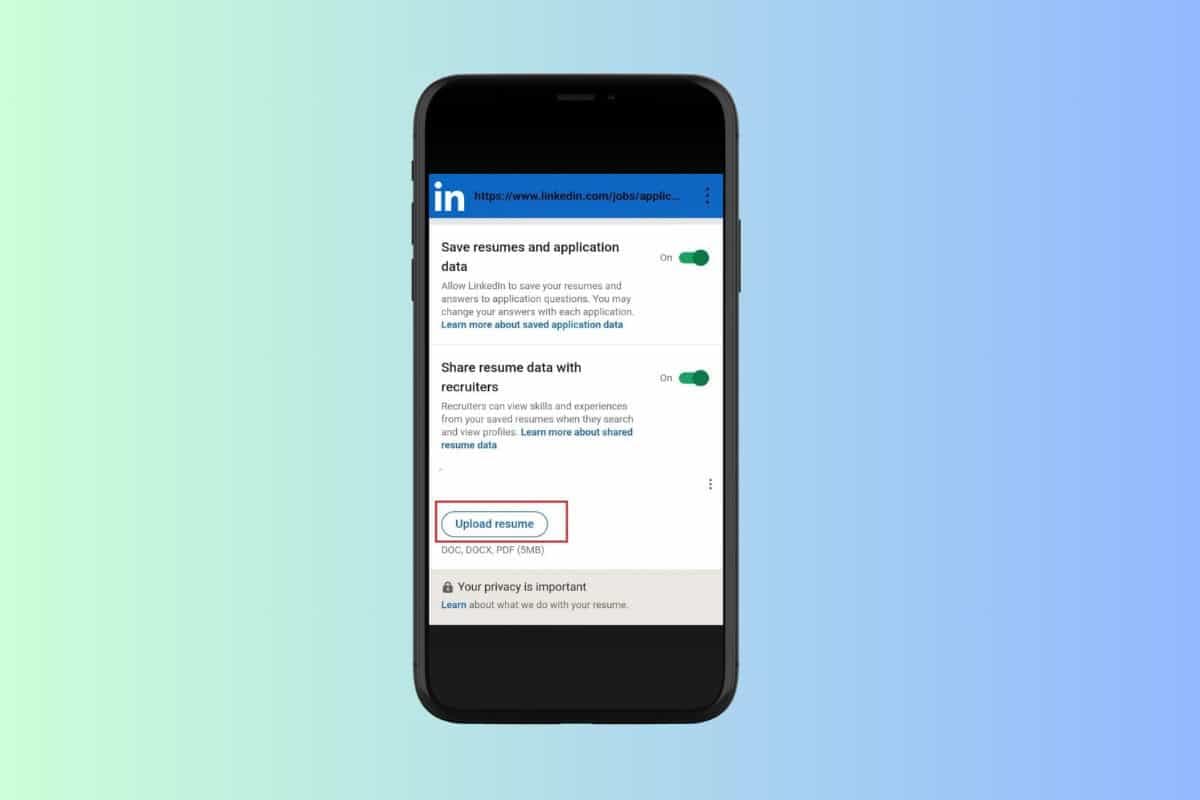
Press Upload resume.
Choose your resume file from your phone storage.
That’s it. LinkedIn automatically saves the file for future applications.
One thing people sometimes miss: LinkedIn usually accepts PDF and DOC/DOCX files, but PDFs tend to preserve formatting much better. Especially on recruiter dashboards where resumes occasionally render in strange ways.
Messy formatting can quietly hurt first impressions. It sounds dramatic, but hiring managers absolutely notice.
This route makes more sense if you’re applying casually or tailoring resumes for different roles.
A lot of professionals now keep multiple resume versions. One for management jobs. Another for technical roles. Maybe a stripped-down one for startups that hate corporate formatting. You get the idea.
Uploading during the application process lets you choose the right version each time.
Open LinkedIn.
Tap the Jobs tab at the bottom of the screen.
Search for the role you want.
Open a listing that includes the Easy Apply option.
Fill in the required details.
When prompted, tap Upload resume.
Select your file.
Continue through the remaining application steps.
Tap Submit.
Simple enough. Though occasionally LinkedIn can freeze for a second after file uploads on slower connections. Don’t panic and tap five times. That usually makes it worse.
Give it a few seconds first.
This part confuses people constantly because LinkedIn doesn’t exactly spotlight stored resumes.
Once uploaded, your resume is usually stored inside your job application settings.
Go to your LinkedIn settings.
Tap Data privacy.
Open Job application settings.
Your saved resumes should appear there.
You can also sometimes view resumes tied to individual applications by checking jobs you’ve already applied for. LinkedIn may show a “Submitted resume” section depending on the listing.
Not every employer setup displays it the same way, though. That inconsistency catches people off guard.
Uploading a resume is easy. Uploading a good one is the harder part.
And yes, recruiters really do notice the little things.
A surprising number of resumes still get uploaded as files like FINALresumeNEW2.pdf.
Keep it clean instead:
Firstname_Lastname_Resume.pdf
Tiny detail. Feels more professional immediately.
People forget this constantly because LinkedIn stores previous uploads quietly in the background.
Before applying for a role, double-check which version is attached. Sending a two-year-old resume by accident happens more often than anyone likes to admit.
Here’s something recruiters rarely say publicly: many applications are reviewed on phones now.
If your resume becomes unreadable on smaller screens because of crowded columns or microscopic text, it creates friction immediately.
Simple layouts still win. Probably more than people expect.
This gets debated a lot.
Some career coaches recommend adding resumes directly to profile sections so recruiters can download them instantly. Others avoid it completely because resumes often contain personal information like phone numbers and email addresses.
Honestly, there isn’t one perfect answer.
If you do upload a public-facing resume, consider trimming sensitive details first. Maybe remove your full address. Maybe create a networking-focused version instead of using the exact resume you send formally to employers.
That extra caution matters online now.
Sometimes the upload button simply refuses to cooperate. Usually it’s one of these issues.
Your file size is too large
The format isn’t supported
Your app version is outdated
The internet connection dropped during upload
Usually converting the file to PDF fixes things pretty quickly.
And if the app keeps acting strangely, logging out and back in actually works more often than it should. Kind of annoying. But true.
Uploading your resume takes maybe three minutes. Tailoring it thoughtfully takes longer.
That second part matters more.
A clean resume attached to the right role still beats mass-applying with the same generic document everywhere. Recruiters can tell when applications are rushed. Sometimes instantly.
So yes, get the upload process sorted. But spend a few extra minutes refining what you’re uploading too. Quietly, that’s the part that tends to change outcomes.
Ethnic Koti Editorial Team. (2026). "How to Upload Your Resume on the LinkedIn Mobile App Without Getting Lost in the Menus". Ethnickoti Blog. Retrieved from https://ethnickoti.com/blog/how-to-upload-resume-linkedin-mobile-app
Join the conversation. Be respectful and helpful.