Apple|11 minutes Read
9 Best Auto Clickers for Mac in 2026 That Actually Make Repetitive Work Bearable
Ethnickoti

There’s a very specific kind of frustration that only Mac users who deal with repetitive tasks understand. Not the dramatic kind. Just the slow, annoying kind that creeps in after your fourth hour clicking through forms, testing buttons, refreshing inventory screens in a game, or grinding through spreadsheet workflows that should’ve been automated three weeks ago.
And yes, Macs are brilliant machines. But they still expect your hand to do a shocking amount of repetitive labor.
That’s where auto clickers quietly save the day. Not in some dramatic productivity-guru way. More like: your wrist hurts less, your focus improves, and you stop feeling personally attacked by repetitive mouse clicks.
The problem is that a lot of auto clickers for macOS feel sketchy, outdated, or weirdly complicated for software that’s literally designed to click things automatically.
So instead of dumping random apps into a list, this guide looks at the ones people are still genuinely using in 2026. Some are lightweight and dead simple. Others lean into advanced automation without turning your desktop into a science experiment.
A surprising number of Mac auto clickers fail at the basics.
Some consume too many system resources. Others break after macOS updates. A few bury simple settings behind menus that feel designed by someone who enjoys confusing people.
The better ones usually share a few traits:
Fast setup without needing a tutorial video
Reliable hotkeys for starting and stopping clicks
Flexible click intervals, especially millisecond support
Compatibility with newer Apple Silicon Macs
No suspicious background behavior
That last one matters more than people think.
An auto clicker technically needs accessibility permissions to control your mouse. That’s normal. Still, you should only install tools from developers with some level of credibility or community trust.
iMouseTrick feels refreshingly uncomplicated. Which honestly becomes its biggest strength after trying bloated automation apps pretending to be enterprise software.
You launch it, choose how many clicks you want, set your delay timing, assign a trigger, and that’s basically it. No clutter. No giant configuration panels trying to impress you.
It’s particularly good for beginners because the controls are visual instead of overly technical. The slider-based timing adjustments make experimentation easier too. You don’t feel like you’re entering code just to automate a few clicks.
One thing people end up appreciating after longer use: you can minimize it and forget it’s running until needed. Tiny detail. Big quality-of-life difference.
Casual automation, simple repetitive tasks, newer users
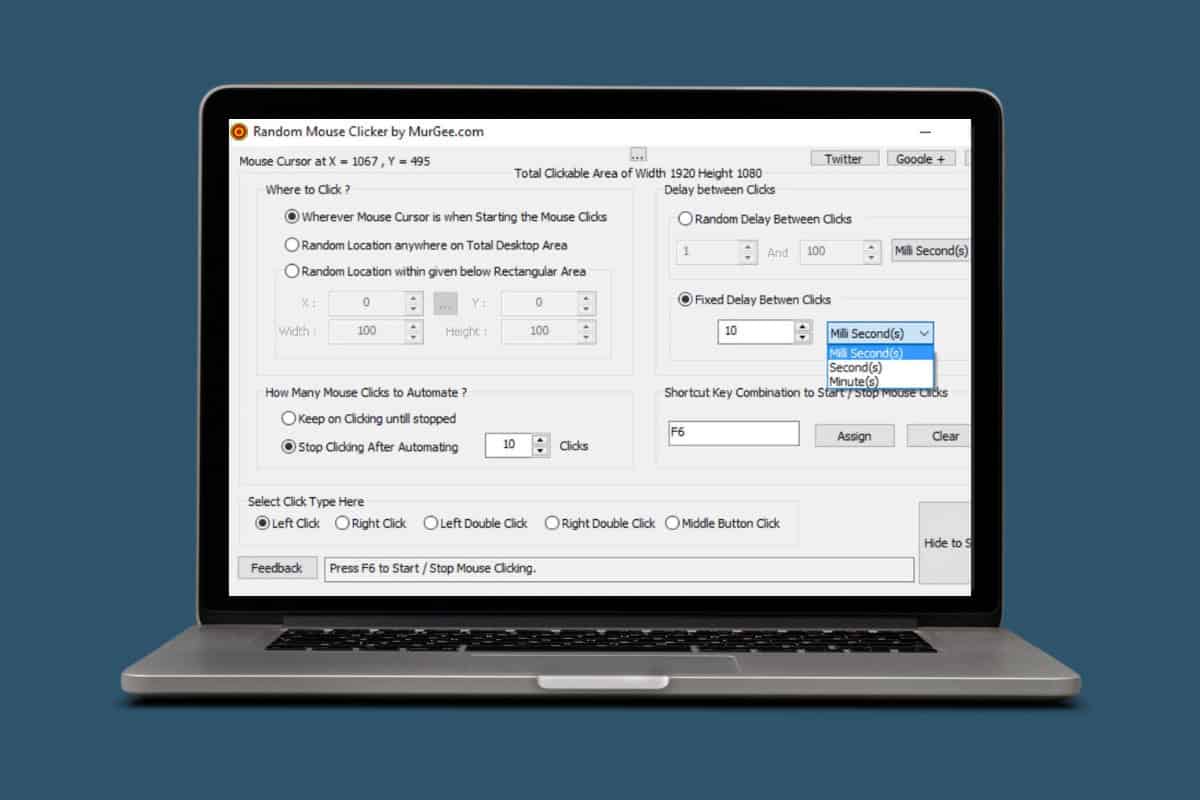
MurGaa has been making Mac automation utilities for years now, and it shows. Their software doesn’t necessarily win beauty contests, but reliability counts for more when you’re automating repetitive actions for hours at a time.
This version balances simplicity and control pretty well. You can automate left clicks, right clicks, double clicks, scrolling actions, all without digging through endless settings.
The keyboard shortcut system works smoothly too. That sounds minor until you use an app where hotkeys randomly fail mid-session. Few things are more irritating than an auto clicker refusing to stop clicking.
Gamers still use MurGaa heavily in 2026, especially for idle mechanics and repetitive farming loops. Though obviously, online competitive games may consider any automation a violation. Worth remembering before risking an account you care about.
Balanced automation with dependable controls
Dwell Clicker 2 takes a different approach entirely.
Instead of physically pressing the mouse button, you simply hover your cursor over something and the click triggers automatically after a preset delay.
At first it feels strange. Then weirdly natural.
This style of automation can genuinely reduce wrist strain for users dealing with repetitive stress issues. It also works surprisingly well for accessibility-focused setups where minimizing physical clicks matters.
The floating control panel deserves credit too. Instead of burying timing settings in menus, adjustments remain accessible while you work. That sounds obvious. Yet many apps still don’t do this well.
There’s keyboard macro support here as well, which pushes it beyond basic auto-clicking into lightweight workflow automation territory.
Accessibility, hover-based clicking, reduced wrist strain
Some software survives because it keeps evolving. Other software survives because it never overcomplicated itself in the first place.
Auto Clicker 1.0 belongs firmly in the second category.
It’s lightweight, straightforward, and intentionally minimal. You set a click interval, define how many clicks you need, and let it run.
That simplicity actually becomes useful when you’re automating repetitive desktop tasks across multiple devices because the Windows compatibility keeps workflows consistent.
No flashy features here. But honestly, not everybody needs advanced scripting or randomized timing algorithms just to automate a repetitive browser action.
Sometimes boring software is dependable software.
Basic click repetition with minimal setup
This one lands somewhere in the middle between beginner-friendly and power-user capable.
Mac Auto Clicker by FileHorse gives fairly detailed timing controls without overwhelming the interface. You can tweak click intervals, directional patterns, and stopping conditions pretty quickly once you get familiar with it.
There’s a small catch though. Installation on newer macOS versions occasionally requires workarounds involving security permissions and unofficial authorization steps.
That doesn’t automatically make it unsafe. But less technical users might get uncomfortable halfway through setup.
Once configured properly, though, the app performs reliably. Especially for repetitive productivity tasks rather than gaming.
Users who want advanced timing without heavy automation suites
This one does exactly what its name suggests. Fast clicks. Very fast clicks.
There’s something almost refreshing about software that doesn’t pretend to be more than it is.
Fast Auto Clicker focuses on rapid-fire clicking performance while keeping setup relatively painless. You choose your interval, assign a hotkey, and let it go.
The automatic stop-after-count feature deserves more praise than it usually gets. It prevents accidental endless clicking loops that can spiral into chaos surprisingly fast. Anyone who has watched an uncontrolled auto clicker attack random desktop icons understands this immediately.
It’s especially useful for repetitive in-game actions or stress-testing software interfaces where rapid input matters.
High-speed click automation and gaming tasks
Not every automation pattern should look perfectly robotic.
That’s basically the appeal here.
Mac Random Mouse Clicker introduces variable timing behavior instead of rigid click intervals. For some workflows, especially simulations or repetitive tasks where perfectly timed inputs appear unnatural, that flexibility matters.
You can simulate left, right, or middle clicks while adjusting delay randomness and hold duration. The controls remain surprisingly approachable despite sounding technical.
The interface won’t wow anybody aesthetically. But it’s functional, responsive, and stable enough for extended sessions.
Which honestly matters more.
Variable click timing and less predictable automation
iClickMac keeps things lightweight enough that older Macs still handle it comfortably, which is becoming less common these days.
The setup process is straightforward: define your click interval, position your cursor, start clicking. Done.
It also includes a few useful extras like shortcut recording and customizable CPS presets. Nothing groundbreaking, but practical.
There are limitations though. The inability to fine-tune millisecond-level intervals may frustrate advanced users, and the 20-click session limit feels oddly restrictive in 2026.
Still, for casual repetitive clicking, especially if you prefer App Store software over third-party downloads, it remains a decent choice.
Lightweight casual use on older Macs
This is where things start leaning toward power-user territory without becoming intimidating.
Mac Auto Clicker supports unlimited clicks, grouped click sequences, delayed launches, millisecond precision, and customizable patterns. Sounds like a lot. Yet the interface stays surprisingly manageable.
What makes it stand out is the ability to automate multi-step timing sequences instead of repeating one isolated action forever. That opens the door for workflow automation beyond simple clicking.
Developers testing interfaces tend to appreciate this kind of flexibility. So do spreadsheet-heavy office users quietly trying to reclaim pieces of their sanity.
And despite the feature depth, it remains accessible enough that non-technical users can still figure it out after a little experimentation.
Advanced click sequences and workflow automation
Auto clickers sit in a slightly awkward category of software because they require accessibility permissions inside macOS. That permission level allows apps to control mouse and keyboard behavior.
Perfectly normal for automation tools. Still worth being cautious.
A decent rule: if the website looks abandoned, overloaded with ads, or aggressively pushes strange installers, skip it.
And honestly, if a simple auto clicker asks you to disable half of macOS security protections, trust your instincts and walk away.
Depends entirely on what’s irritating you most.
If you just want simple repetitive clicking without complexity, iMouseTrick or Auto Clicker 1.0 are easy wins.
If you need stronger controls for gaming or productivity workflows, MurGaa’s tools remain some of the most dependable options available on macOS.
And if you’re drifting toward heavier automation, Mac Auto Clicker gives you room to grow without immediately throwing scripting languages at your face.
The bigger point is this: repetitive clicking drains attention faster than people realize. Tiny automations add up. They reduce friction. They remove annoying little interruptions that slowly wear down your patience throughout the day.
Once you get used to automating repetitive clicks, going back feels oddly primitive.
Ethnic Koti Editorial Team. (2026). "9 Best Auto Clickers for Mac in 2026 That Actually Make Repetitive Work Bearable". Ethnickoti Blog. Retrieved from https://ethnickoti.com/blog/best-auto-clickers-for-mac-2026
Join the conversation. Be respectful and helpful.