How To|9 minutes Read
How to Actually Log Out of Gmail on Android, iPhone, and iPad Without Accidentally Breaking Everything
Ethnickoti

This is where a lot of people get irritated almost immediately.
You open the Gmail app expecting a simple logout button somewhere obvious. Maybe tucked under Settings. Maybe near your profile picture. Instead you get menus about account syncing, device management, Google services, backup options, security prompts. Suddenly a two-second task feels weirdly complicated.
And honestly, the confusion makes sense.
Gmail stopped being “just email” years ago. Your Google account is tied into almost everything now. Photos. Maps. Drive. Chrome passwords. Calendar reminders you forgot existed. Even the random YouTube searches you made at 2 a.m.
So when you try to sign out of Gmail, your phone treats it less like leaving an app and more like disconnecting part of the operating system itself.
That’s why the process feels strangely bigger than it should.
Still, there are clean ways to do it. You just need to know which version of “logging out” you actually mean.
People say “I need to log out of Gmail,” but they’re often trying to solve very different problems.
Those situations should not be handled the same way. Turning off sync is fine for one. Completely removing the account matters for another.
And then there’s the classic panic moment.
Someone remembers they signed into Gmail on an old iPad during a vacation three years ago and suddenly wonders if it’s still sitting there connected to everything.
Not an amazing feeling.
Apple devices handle this in a way that feels slightly more normal. Less tangled.
If you simply want your Gmail account removed from the Gmail app on an iPhone or iPad, here’s the quickest route:
That’s basically it.
Your emails disappear from that device, Gmail signs out, and Google services tied through the app stop syncing there.
One thing people sometimes miss: removing the account from your iPhone does not delete the actual Google account itself. Your emails are still safely sitting online exactly where they were before.
You’re disconnecting the device. Not erasing your digital life.
Maybe you don’t want full removal. Maybe you just need quiet for a weekend.
In that case, turning off Gmail notifications is honestly less dramatic and usually smarter.
Because once people remove accounts completely, they often forget passwords, lose backup access, or realize too late that another Google app was relying on that same login.
It happens constantly.
Android treats your Google account almost like part of the phone itself.
That means there usually isn’t a clean standalone logout button inside Gmail the way people expect. Instead, Android assumes your Google account powers multiple core functions at once.
Which is true. But still annoying when all you wanted was to stop checking email.
There are basically two realistic options here.
This is the underrated choice.
If you don’t actually need the account removed, disabling Gmail sync stops new emails from appearing while leaving the rest of the account connected to the phone.
Here’s how:
That’s enough for a lot of people.
Your inbox stops refreshing. Notifications calm down. Yet things like Google Photos or saved Chrome passwords continue functioning normally.
Kind of a middle ground.
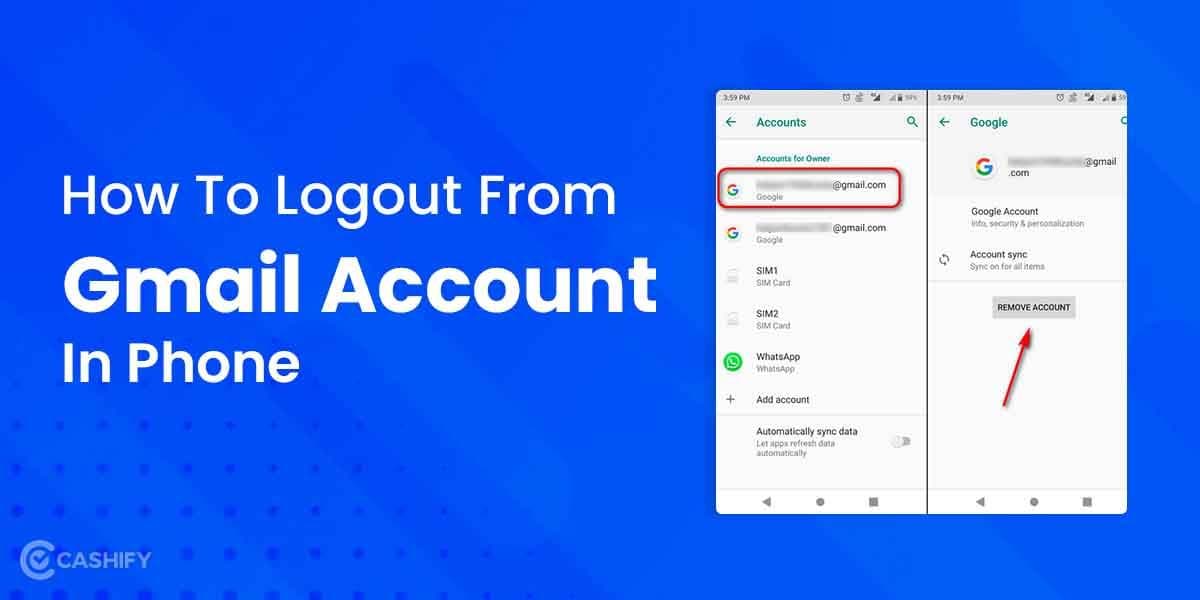
This is the full disconnect.
If you’re trading in your phone, passing it to someone else, or cleaning up a shared device, this is usually the safer route.
Once removed, Gmail access disappears from that Android phone alongside connected Google services tied to that account.
There’s usually a small moment of panic afterward because Android throws warning messages that sound more catastrophic than they really are.
Your account itself still exists. Your data is still online. You’re not deleting Gmail from existence.
You’re just removing that device’s access.
“Removing an account” and “logging out” sound interchangeable. Android especially treats them differently though.
Traditional logout systems were temporary. You signed back in later and nothing really changed.
Removing a Google account from Android disconnects a whole collection of services at once. Gmail, Play Store syncing, Drive access, backups, sometimes app data too.
That’s why some phones suddenly start acting strange afterward if the removed account was the primary one tied to the device.
It’s not broken exactly. Just partially disconnected.
People rush this process way more than they should.
And later they realize the phone number for two-factor authentication was tied to the same device they just reset. Or their saved passwords vanished with Chrome syncing. Or they forgot the account password entirely.
A few quick checks save a lot of stress.
That last one matters more than people think.
Android’s Factory Reset Protection can lock future users out if the original Google account wasn’t removed correctly beforehand. Repair shops deal with this all the time.
A surprising amount of Gmail frustration comes from people stuffing everything into one account.
Work emails. Personal messages. Online shopping receipts. Random free trials from 2018. One inbox becomes a digital junk drawer and eventually people start constantly signing in and out trying to separate their lives again.
The Gmail app actually handles multiple accounts pretty well now. Better than it used to.
Switching profiles inside the app is usually easier than repeatedly removing accounts altogether.
Not always. But often enough.
Then again, if privacy is the concern, or the device is leaving your hands entirely, full removal is still the safer call.
Shared devices and forgotten logins are exactly how personal accounts end up exposed months later.
Yes. On Android especially, turning off Gmail sync is often enough if your goal is simply stopping email updates or notifications. Your Google account stays connected to the device, but Gmail itself stops refreshing in the background.
No. Your emails stay stored in Google’s servers unless you intentionally delete them from the account itself. Removing the account from a phone only disconnects that particular device from your Gmail access.
Because Android builds Google services directly into the operating system. Gmail isn’t treated as a standalone app in the same way Apple handles it. One Google login powers multiple Android features at once, so removing it affects more than just email.
Gmail stops syncing, Play Store purchases may pause, backups disconnect, and some apps can behave oddly until another Google account is added. The phone still works, but parts of Android lose connected features tied to that account.
Absolutely. Remove the Google account first, then perform the factory reset. That protects your private information and prevents account verification issues for whoever uses the phone next. Skipping that step causes more problems than people realize.
Ethnic Koti Editorial Team. (2026). "How to Actually Log Out of Gmail on Android, iPhone, and iPad Without Accidentally Breaking Everything". Ethnickoti Blog. Retrieved from https://ethnickoti.com/blog/how-to-log-out-of-gmail-on-android-iphone-ipad
Join the conversation. Be respectful and helpful.