How To|9 minutes Read
How to Get Help in Windows 11 Without Wasting an Hour Clicking Around
Ethnickoti

Windows 11 usually behaves itself. Until it doesn’t.
One minute you’re casually renaming files or connecting Bluetooth earbuds, and the next thing you know, your taskbar disappears, Wi-Fi stops responding, or a random error message shows up with absolutely no context. It happens to almost everybody eventually. Even people who’ve been using Windows for years still end up searching for fixes at 1:12 AM while staring at a frozen screen.
The good part? Windows 11 actually includes several built-in ways to get support. Microsoft tucked help tools into places most people never think to check. Some are genuinely useful. Others are… less impressive. Still, if you know where to look, you can usually solve smaller problems without calling a technician or reinstalling your entire system out of frustration.
Here’s a realistic walkthrough of the best ways to get help in Windows 11 the fast options first, the deeper troubleshooting stuff afterward.
This is probably the easiest place to begin, especially if you don’t even know what your issue is called yet.
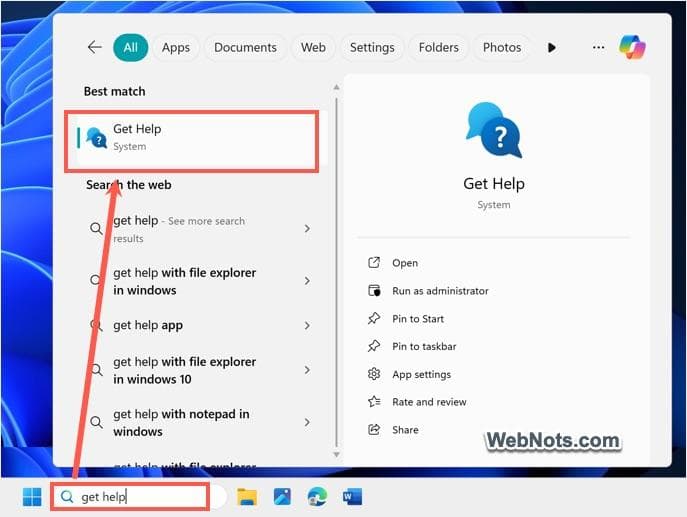
Windows 11 comes with something called the Get Help app. It’s basically Microsoft’s official support hub bundled into the operating system. Sometimes it feels surprisingly smart. Other times it sends you in circles. Depends on the problem.
To open it:
Click the Search icon on the taskbar
Type Get Help
Open the app
Once inside, type your issue naturally. Don’t overthink the wording. Something like “Bluetooth keeps disconnecting” works better than trying to sound technical.
The app can pull up articles, troubleshooting steps, and in some situations, direct support options. You may even get a live chat route depending on your region and Microsoft account status.
Honestly, it’s much better than the old Windows help systems from years ago. Those felt trapped in 2009 forever.
A lot of people forgot this exists.
The F1 key has been Windows’ universal “help me” button for decades, and surprisingly, it still works in many apps and system windows.
If you press F1 inside File Explorer, Microsoft Office apps, browsers, or certain settings menus, Windows usually opens support documentation related to that application.
Not every modern app supports it perfectly anymore. Some programs ignore it completely. But when it works, it saves time.
Tiny detail that catches people off guard: on many laptops, you may need to press Fn + F1 instead of only F1 because function keys are shared with brightness and volume controls now.
Slightly annoying. But manageable.
People often underestimate how useful Windows Search has become.
Instead of searching for exact settings names, type your problem conversationally.
Things like:
“Why is my screen flickering?”
“Fix no sound in Windows 11”
“How to reset Wi-Fi adapter”
Windows often pushes support links, setting shortcuts, or quick fixes directly inside the search panel.
And if it can’t solve the issue locally, it’ll open web results in your browser automatically.
Not perfect, obviously. But surprisingly decent for common problems.
Nobody gets excited about troubleshooters. They sound like corporate paperwork turned into software.
Still, Windows 11 troubleshooters can quietly fix things in the background without you touching registry settings or digging through command prompts.
To access them:
Open Settings
Choose System
Select Troubleshoot
Open Other troubleshooters
You’ll see dedicated tools for:
Internet connections
Bluetooth
Audio problems
Printers
Windows Update issues
The Windows Update troubleshooter alone has rescued a ridiculous number of stuck PCs over the years.
There’s something oddly satisfying about clicking one button and watching Windows repair itself after an hour of stress.
This part feels very 2026.
Microsoft integrated Copilot deeply into Windows 11, and for troubleshooting, it can actually save time because you don’t have to sift through giant support articles anymore.
Open Search, type Copilot, then describe the issue naturally.
You can ask things like:
“Why is my laptop fan suddenly loud after updating Windows?”
“How do I stop startup apps from slowing my PC?”
“Why can’t Windows detect my second monitor?”
The responses usually feel more conversational than standard Microsoft documentation. Sometimes Copilot even walks through steps one by one in a pretty understandable way.
That said, don’t blindly trust every AI suggestion. Especially if registry edits or BIOS changes get mentioned. Double-check before changing system-level settings.
A little skepticism keeps computers alive.
Windows 11 quietly added help prompts directly into the Settings app itself.
If you open Settings and head into sections like Network, Display, or System, you’ll occasionally notice small “Get Help” links attached to problem areas.
A lot of users miss these entirely because they blend into the interface.
For example, if audio isn’t working, Windows may suggest automatic diagnostics right there in the Sound settings page. No searching required.
It feels less dramatic than opening support forums and reading 400 comments from strangers arguing about drivers.
Honestly? That’s a good thing.
Years ago, Microsoft support articles had a reputation for being painfully technical or weirdly vague.
That’s improved quite a bit.
If your issue is specific maybe a blue screen error code or a Windows activation problem the official Microsoft support site usually has dedicated pages explaining exactly what’s happening.
And unlike random blog fixes copied from decade-old forum posts, Microsoft documentation tends to stay updated after major Windows changes.
That matters more than people realize.
A fix written for Windows 10 in 2018 can absolutely break something in Windows 11 today.
There’s a certain category of Windows issue that official support never explains properly.
The oddly specific ones.
Stuff like:
Taskbar flickering only after sleep mode
Bluetooth audio crackling on one brand of headphones
A printer working only when connected before startup
That’s where community forums become useful.
Microsoft Community, Reddit, Quora, and even niche PC forums often contain discussions from people who’ve dealt with the exact same issue already.
Not every answer is good advice. Some forum users confidently recommend things that are absolutely terrible ideas. But if multiple people confirm the same fix worked, it’s usually worth investigating.
Just avoid downloading random “repair tools” from sketchy websites. That rabbit hole gets ugly fast.
This part doesn’t get mentioned enough.
If your PC starts crashing constantly, failing updates repeatedly, showing drive errors, or randomly rebooting during normal use, don’t spend six straight hours chasing tiny fixes first.
Back up your important files immediately.
Seriously.
A surprising number of “Windows problems” are actually failing SSDs, corrupted system files, overheating hardware, or dying RAM. Troubleshooting software won’t magically repair failing hardware forever.
There’s a point where protecting your data matters more than fixing the operating system perfectly.
People usually learn this after losing family photos once.
Most Windows issues aren’t completely random. Small maintenance habits genuinely help.
Restart your PC occasionally instead of only using sleep mode forever
Keep drivers updated from trusted sources
Don’t install five “PC cleaner” apps at once
Run Windows Update regularly
Create backups before major changes
Simple stuff. But it cuts down future problems dramatically.
And honestly, the healthiest relationship with Windows is accepting that occasionally something weird will happen anyway.
That’s just part of using computers now.
Getting help in Windows 11 is much less painful than it used to be, even if Microsoft still hides useful tools behind too many menus sometimes.
For quick issues, the Get Help app and troubleshooters usually handle things well enough. Copilot helps explain problems in plain language. Community forums cover the weird edge cases nobody else talks about.
And if all else fails?
Restarting the computer still fixes an absurd amount of problems. Some traditions never disappear.
Ethnic Koti Editorial Team. (2026). "How to Get Help in Windows 11 Without Wasting an Hour Clicking Around". Ethnickoti Blog. Retrieved from https://ethnickoti.com/blog/how-to-get-help-in-windows-11
Join the conversation. Be respectful and helpful.