Android|9 minutes Read
How to Change the Default Language on Android Without Getting Lost in the Settings
Ethnickoti

It usually happens by accident.
A child taps around on your phone for thirty seconds. You buy a device imported from another country. Maybe you changed a setting while half asleep and suddenly everything on your Android phone looks unfamiliar. Menus become unreadable. Buttons feel impossible to trust. Even simple things like opening Wi-Fi settings suddenly turn into guesswork.
And honestly, language settings on Android aren’t always where you expect them to be. Samsung hides them in one place. Xiaomi puts them somewhere else. Motorola does its own thing. So if you’ve been poking around trying to figure it out, you’re not alone.
The good news is that changing the default language on Android is usually quick once you know where to look. Even better, you don’t need any technical skills to do it.
Not everyone changes their phone language because something went wrong.
Some people switch to their native language because it simply feels more comfortable. Others are learning a second language and want daily exposure without opening a study app every hour. A surprising number of bilingual users switch back and forth depending on work, family, or travel.
There’s also something oddly personal about the language your phone speaks. Tiny details matter. Date formats. Keyboard suggestions. Voice typing. Even the way notifications are phrased changes the mood of using the device.
Once you notice it, you can’t really unnotice it.
Android manufacturers love customizing menus, so your screen may look a little different from the steps below. Still, the process is broadly the same across most devices running Android 12, 13, 14, and newer versions.
Open the Settings app. Look for the gear-shaped icon.
Find language settings. Depending on your device, this may appear under “System,” “General management,” or “Additional settings.”
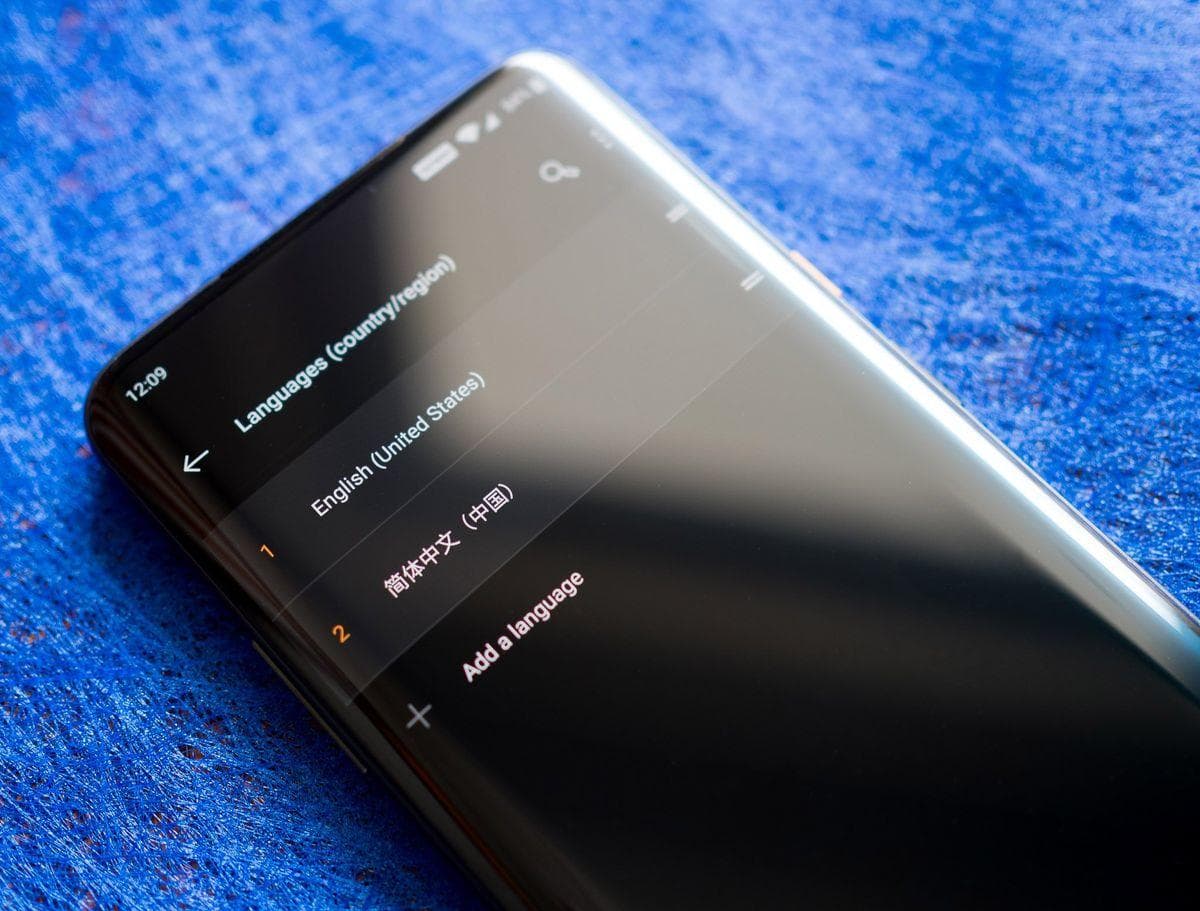
Tap “Languages” or “Language & region.”
Select “Add a language.”
Choose your preferred language from the list.
Move the new language to the top. Most Android phones use drag-and-drop ordering.
Confirm the change when the pop-up appears.
That’s it. Your phone should immediately switch system menus, notifications, and supported apps into the selected language.
Though fair warning: not every app follows the system language perfectly. Some apps stubbornly stay in English no matter what you do. Streaming apps are especially guilty of this.
This is where people usually panic a little.
If your Android phone is currently set to a language you don’t understand, use the Settings search bar if available. Search for terms like “language,” “langue,” “idioma,” or “Sprache,” depending on what you recognize.
Another trick that actually works surprisingly well: use Google Lens on another phone to translate the screen in real time. It sounds clunky, but it can save you from randomly tapping through menus and making things worse.
And yes, people absolutely do that.
Here’s something many Android users don’t realize right away: changing your phone language doesn’t always change your Google search results.
You might still see results, recommendations, or news stories in another language because Google apps maintain their own settings separately. Slightly annoying, honestly.
To change the Google search language:
Open the Google app.
Tap your profile picture in the top-right corner.
Go to Settings.
Tap Language & region.
Choose Search language.
Select the language you want Google Search to use.
After that, your search experience should feel a lot more consistent. Search suggestions, Discover feed content, and some voice search features may also begin adapting over time.
Not instantly, though. Google likes taking its time with these things.
This one matters more than people expect.
Your keyboard controls autocorrect, swipe typing, predictive text, and voice input. If the keyboard language doesn’t match how you actually write, typing becomes exhausting fast.
Most Android phones use Gboard by default, though Samsung Keyboard is common too.
To switch keyboard language quickly:
Open any app where typing is possible.
Tap inside a text field to open the keyboard.
Press and hold the spacebar.
Choose the language you want.
Simple enough.
If you don’t see your preferred language listed, you’ll need to add it through the keyboard settings first. Gboard users can usually do this through:
Settings → System → Keyboard → On-screen keyboard → Gboard → Languages
Some multilingual users keep two or three keyboards active simultaneously. It sounds chaotic, but Android handles it pretty gracefully these days.
This is the part nobody mentions until they’re frustrated.
Occasionally, Android simply doesn’t cooperate. You switch the language and… nothing changes. Or only half the phone updates. Or apps restart endlessly.
Usually, one of these issues is responsible:
The selected language isn’t fully supported on your Android version.
A launcher app is overriding system settings.
The phone needs a restart before changes apply correctly.
An outdated software build is causing glitches.
Restarting the phone fixes more language bugs than most people expect. It’s boring advice, sure, but it works.
If that doesn’t help, check for Android updates. Manufacturers quietly patch localization issues all the time.
People tend to underestimate how much language shapes their experience with technology.
A phone set to the wrong language feels distant. Slightly uncomfortable. You stop noticing it consciously after a while, but there’s friction there every single day.
Then you switch everything back to your preferred language and suddenly the device feels familiar again. Easier. Faster. More yours.
Funny how something so small can affect the entire rhythm of using a phone.
Ethnic Koti Editorial Team. (2026). "How to Change the Default Language on Android Without Getting Lost in the Settings". Ethnickoti Blog. Retrieved from https://ethnickoti.com/blog/change-default-language-android-guide
Join the conversation. Be respectful and helpful.